Overview
Layaway, which lets shoppers pay for items in installments, can seem like a good option for shoppers who want to stick to a budget. In-store layaway — in which a store sets aside an item that a shopper wants to buy and lets them pay for it in installments before they can take it home — may seem old-fashioned in a world where most people have credit cards, but it's aimed at consumers who don't have the cash for big purchases or don't want to run up their credit card bills.
Terms vary by retailer, but often programs will only allow shoppers to put certain items — or items above a certain price point — on layaway. Shoppers will also be expected to make regular payments on these goods, and most stores ask for a down payment. Missing a payment, deciding you don't want an item, or failing to pick it up on time will likely result in a cancellation fee ranging from $10 to $15, though shoppers should get the rest of their payments back in cash or store credit.
Reasons Retailers have for adding a layaway option for their customers:
- Increase traffic into the store: Layaway programs will mean that shoppers will be walking into the store monthly or bi-weekly to make the required payments. These increased visits to the store, means more opportunities for the sales associates to recommend or engage shoppers while they are in front of them and could lead to more purchases by the consumer. #MSIB
- There is a high probability that existing customers are likely to know shoppers that prefer to buy through layaway programs, and share the layaway program with them. Layaway offers opportunities to sell items, to those shoppers that otherwise may have not purchased products from a retailer because they need to spread their payments over time. This allows new opportunities for new customers, increased sales and growing your CRM. #bringmorecustomerstoyourstore
- Layaway is an ideal marketing opportunity for retailers to get shoppers to start their Christmas shopping. They are able to purchase the products they want, without having to hunt for them later. It also alleviates the high credit card debts that shoppers experience at the end of the holiday season, giving consideration to no regrets and to keep shopping at the beginning of the year #makingtheholidayshappier
- Layaway should not be considered just as a Christmas or Holiday arrangement; neighborhood stores should utilize layaway as an opportunity to market products during slow periods through their layaway program. #relevantmarketing
- Retailers can utilize data from the reports based on their customized options. #retailmadesimple
- Retailers are able to set their rules and payment based on their business practices and can easily track their payments to ensure what payments are due. #retailmadesimple
- Layaway payments don’t only need to be paid with cash; merchants can opt to accept them through paypal and dwolla, engaging mobile shoppers #mPOS
- Gen Y- establishing the new financial norms, are advised to ask store associates if they offer a layaway plan. Could layaway be the new norm for Gen Y?
Prepaid (Layaway) Set up on CAS
In CAS under Configuration --> Management --> Transaction Codes --> Prepaid Settings users with appropriate rights can define/modify a Prepaid Program. This screen will be used to define the program name and rules. Only one program can be in place (but it can be modified). Modifications affect all transactions that are currently in the system.

The rules would include the following (Mandatory fields have a asterisk to identify them) :
-
Assign a Name for the Prepaid Plan
-
Status of the program (Active appears on payment screen and report option, Inactive appears on report dropdown but not payment screen)
-
Layaway fee to be charged for the transaction
-
Minimum % of the sale or fixed amount of the initial deposit or whichever one is higher option
-
The penalties for cancellation, this would also be calculated out on canceled transactions. This can be in the form of a fixed amount and/or %.
-
The language that would appear on the customer receipt on each layaway transactions, and also print on a merchant copy with the signature line. (Samples below)
-
Select a customer group associated with this transaction
- Enable STS or STS Not Enabled. If STS is not enabled the merchant is keeping track of their own layaway balances. Once STS is enabled, you cannot revert back to Not Enabled.
- Agree to terms and conditions/Save.
Initial Prepaid Transaction (on POS):
When a customer wants to create a prepaid transaction, this is done from the Sales Transaction Screen (with the customer attached to the transaction)
Prepaid Sales (Layaway) - Initial Deposit
When a customer wants to use the established prepaid program (layaway), the items are scanned in the regular POS sales transaction screen. The transaction must only consist of the items that are being prepaid for. If some items are being carried out they must be run as a separate transaction. The user must assign a customer to the transaction. Customers attached to these transactions would be added to the associated group at the end of the transaction.
The item is selected on the sales transaction screen and "Other" is selected as the Tender Type. This will display a few options including Prepaid.
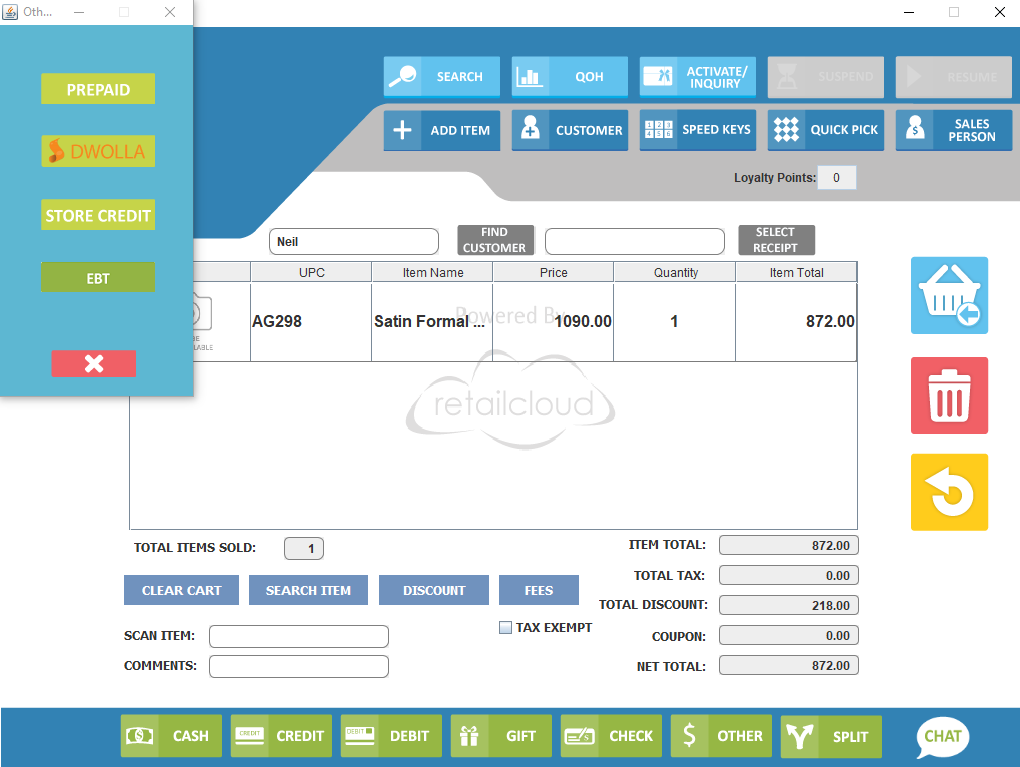
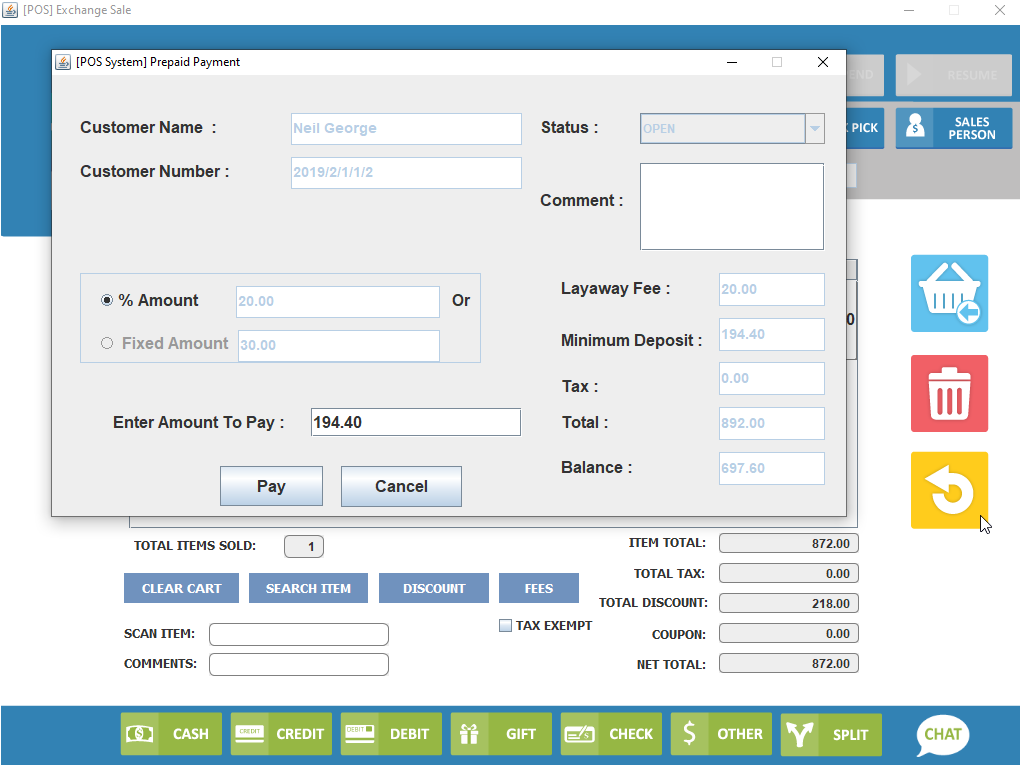
Select Prepaid as the tender type and the screen which appears establishes the Prepaid transaction for the customer, including whether the payment plan will be based on a percent of the outstanding balance or a fixed amount, the fee, deposit amount, and balance.
Once completed, the cashier will select "Pay" to complete the sale. The receipt will include the terms that were defined on the CAS with a signature line for the customer to agree to the terms. A copy of the receipt is printed for the customer and an additional one to attach to the merchandise.
Future payments on the Prepaid Item will be done from the Transactions Tab (selecting Prepaid)
Note: Prepaid is available to existing customers only. Add the customer to the transaction from the Customer/Find section of the Sales Transaction screen.
If the customer is new - you must add the customer first (Transactions>Customer) and then access the customer to add to the prepaid transaction
How is Inventory Affected:
Inventory is not changed (decremented) until final payment is made.
All Future Prepaid Payments (on POS):
When a customer wants to make payments (or the final payment) on the Prepaid (Layaway) items, this is done from the POS -->Transaction --> Prepaid screen.
Prepaid Payments
When a customer wants to make payments on their Prepaid Account (assuming that they have already made their first initial deposit/payment), this will be done on the POS from the Transactions>Prepaid tab.
The Customer must first be identified, using the Customer Find button.
The Prepaid Transactions for the customer which are active will be available to be selected from the drop down. Select the transaction that they would like to make a payment on.

Enter the amount of the payment.
Enter any comments regarding the transaction.
PAY is selected if this will be a partial payment (balance will still be due).
FULL PAY is selected if this transaction will be to pay off the balance on the Prepaid item.
CANCEL is selected if this transaction is to Cancel the Prepaid Account - this cannot be reversed. No future payments can be made. If the Cancellation was in error, a new Prepaid Transaction must be created. If the transaction is cancelled it will have to be subject to the cancellation rules set in the configuration and a receipt would have to be printed for the customer to sign.
CAS Report - Prepaid Activity Report
The Prepaid Activity report will give the user basic information on all of the prepaid transactions. Use the filter criteria to hone into areas of interest.
Go to CAS --> Reports --> Transactions --> Prepaid Activity
This is a report that is used to view layaway transactions that were performed on the POS. This report can be run by Venue, Store, Group, Zone or Customer
User can specify all or specific program name and all or specific status and it can be run at a transaction level or at an item detail level.
.webp?alt=media&token=e0a5a9dc-f3d2-44a4-9505-37ca7e2f8695)
Customer Name : Name of the Customer
Customer Number : Number of the Customer
Email Address : Email Address of the Customer
Prepaid Transaction number : Transaction number for the assigned to the original transaction.
STS Gift Card Number : The number of the gift card that the transactions for that customer are being saved to.
Program name : The name assigned to the program
Initial transaction date : The date when the transaction was created
Retail Amount : The amount of the Sale (not remaining balance)
COGS : Cost of goods sold
Last Payment Date : The last time a payment was made. (STS Enabled transactions only)
Number of Payments : The amount of payments that have been made. (STS Enabled transactions only)
Note : Please note that enabling STS will allow the user to access STS for more specific payment and balance information.
Articles in this section
- Central Administration System
- Configuration
- Company Details
- Company Information
- Payroll Settings
- Merchant Email Configuration
- Invoice Setup
- QSR
- Payment Settings
Comments
Please sign in to leave a comment.