Overview
Go to Management --> Hierarchy --> Venue
A venue or a region is a hierarchy classification for a business enterprise. All enterprises must have at least one venue. A venue can be defined depending on how a company wants to segregate its business units.

Each venue must have its own unique Name. This will show up in all reports and filters so you should name them carefully. If you try to create a venue with an existing name a popup will be displayed asking you to confirm this activity.
Venue names cannot be changed once a venue is created!
Each venue must be assigned to an Administrative Employee who has a Venue Manager role. If you have not already created an employee with this role you must do so first. The Venue Manager that is assigned to this Venue may be modified at any time.
Set Up Licensor Name: Feature is not used at this time.
Set Up Licensor Royalty: Royalty features are not enabled at this time.
If the Override Default Tax rate is checked after the user saves the entry, they will be navigated to a screen that allows them to modify the default tax rate. If there is no Tax Structure established, this should be modified later. This will override the settings at the tax structure level and the venue level, and will not be affected by any changes made at the tax structure management screen.
Should the user wish to override the Minimum Cash Draw amount and the Maximum Cash Draw amount for which email alerts will be generated, these boxes should be checked and the user will be navigated to a modification screen after they save the venue. This will override the settings at the alert and venue level, and will not be affected by any changes made at the Alert Management screen. Changes made at the register level however will override venue settings.
Modify Venue
Go to Management --> Hierarchy --> Modify Hierarchy
This is used to modify Venue settings. The enterprise hierarchy consists of all venues, warehouses, zones, stores (including virtual stores), registers, and reporting groups. This is also where you would be able to assign an administrative employee to each enterprise.
Select the Type of hierarchy as Venue from the dropdown, the list will include all Venues that have been created. This will return the appropriate list of items. Select the Venue to be modified and click Find.
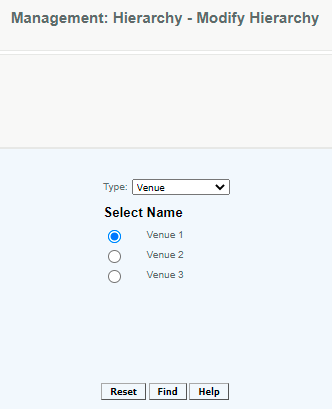
This will navigate you to a screen similar to the screens used for creating the Venue. After all the changes have been made, select Modify to save the changes.
Access
Access to this function at an enterprise level is limited by default to only the System Administrator.
Articles in this section
- Central Administration System
- Configuration
- Company Details
- Company Information
- Payroll Settings
- Merchant Email Configuration
- Invoice Setup
- QSR
- Payment Settings
Comments
Please sign in to leave a comment.