The Suspend & Resume feature allows cashiers to temporarily place a transaction on hold and continue serving other customers without losing the current cart.
This is especially useful in fast-paced environments where customers step away during checkout, payment is interrupted, and so on.
Suspended transactions can now be resumed later from POS while preserving the full cart exactly as it was.
You also have the ability to print the Suspended Transaction Receipt. This is useful if your customers need a copy of the items currently in the cart. Even though this is a retail application, it makes the application great in a bar or snack shop.
Suspend a Transaction
Add items to the cart and then click on the side navigation bar to choose Suspend.
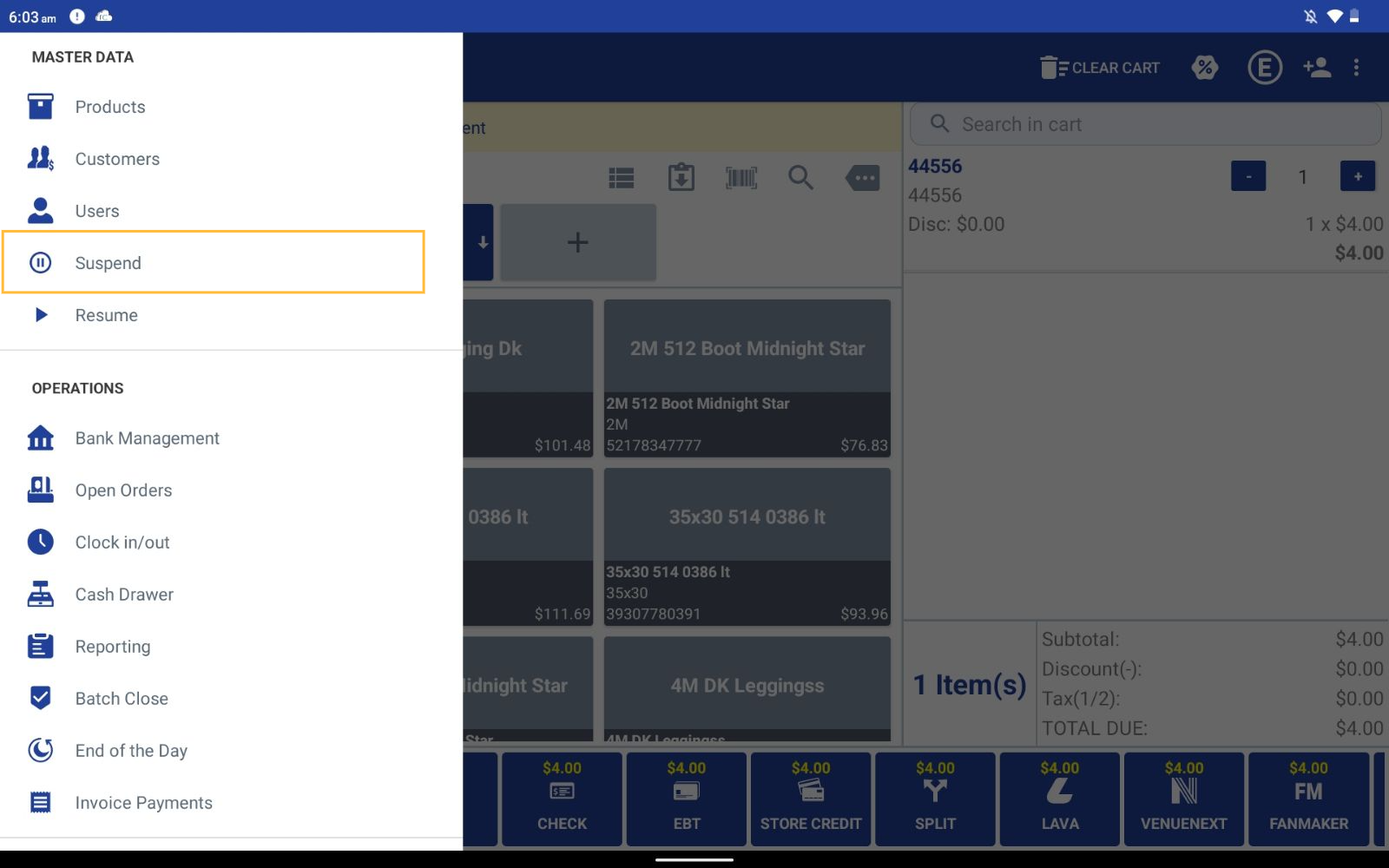
Once Suspend is chosen, user can enter/select the following details:
Cart Name: Enter a cart name for the suspended transaction.
Guest Name: Name of Guest/Customer. If no customer is attached to the sale/cart before clicking on suspend, this particular field will be blank. Cashier can manually enter customer name
Comments: Comments that will print on the receipt (If left blank nothing will print for Comments).
Print: Allows you to print receipt (which includes the items in the cart with a transaction total)
Do Not Print: Saves the suspended transaction and does not print a receipt.
Resume a Suspended Transaction
Resume allows you to resume a suspended transaction to checkout.
Click on the side navigation bar to choose Resume.
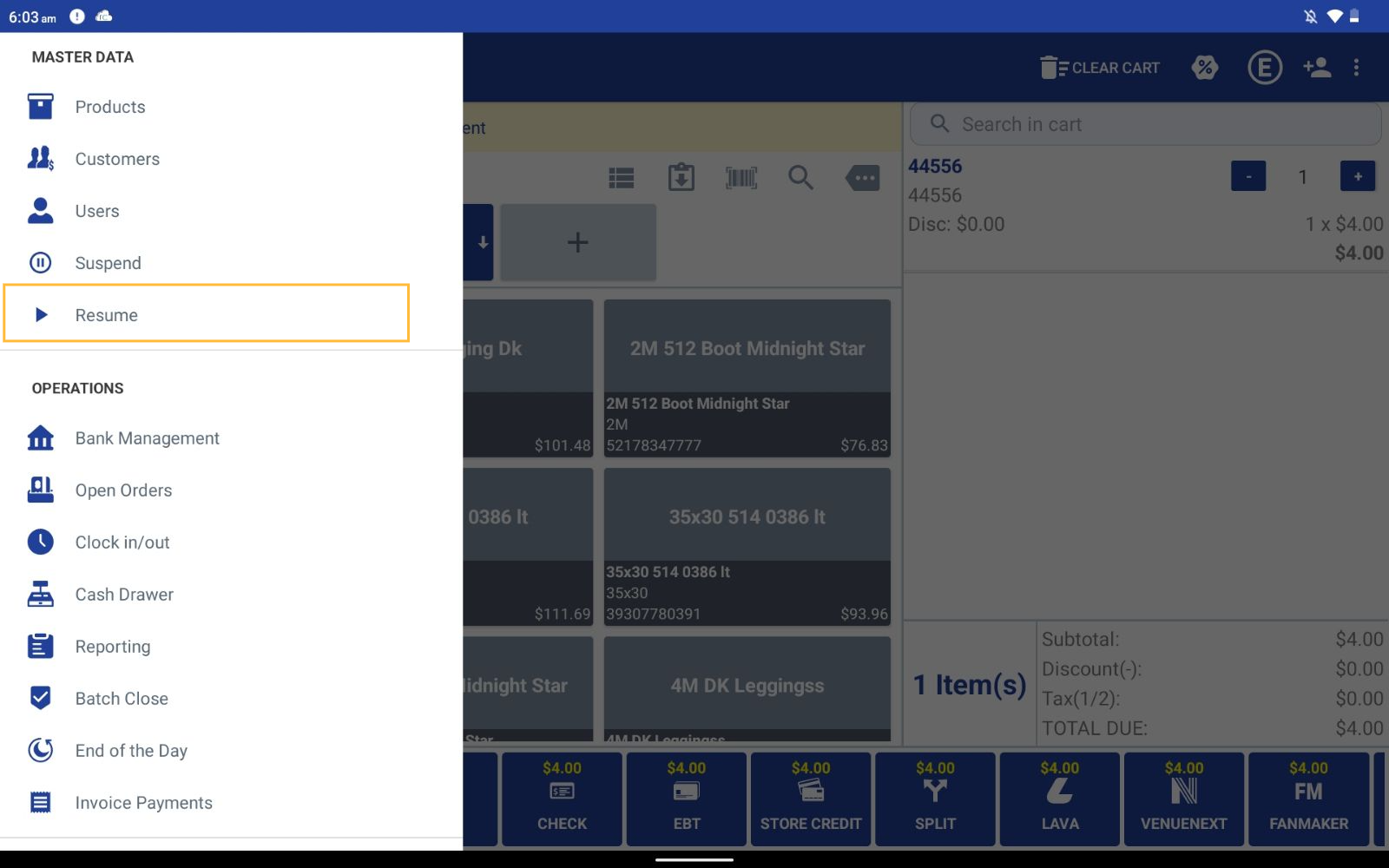
The following details will be available in resume:
Cart ID: Cart ID will be populated automatically upon suspending
Date: The date user suspended the sale
Items: No of items added in the suspended cart
Cart Name: Cart name defined at the time of suspending
Guest Name: Name of Customer. If no customer is attached to the sale, shows N/A.
Customer: Customer ID of already existing customer attached to the suspended sale.
Printer: Allows you to reprint the suspended transactions for the list of items
Price: How much is the suspended sale for.
Click on the > arrow to resume the transaction. A pop-up will appear, click yes to add the suspended items to the cart.
Articles in this section
- Phone Order Checkout in 6ixPOS
- FreedomPay in 6ixPOS
- ValorPay Integration on 6ixPOS
- CRM Capture in 6ixPOS
- Suspend & Resume Transaction
- Serialization in 6ixPOS
- Stripe Terminal Integration on 6ixPOS
- Using Cayan Gift Cards in 6IX POS
- Prevent Negative Stock Sales in 6IX POS
- All Items Discount in 6ixPOS
Comments
Please sign in to leave a comment.