Overview
Cost-plus Percentage allows for a discount to be structured at a specified percent above cost. This will allow merchants to offer either certain customers or groups of customers a favorable discount that does sure not go below cost. Typically a discount like this is reserved for employees, "friends and family" or owners. Note: since this discount is based on cost, it's important to make sure that costs are correctly entered into the system. Retailers who utilize this discount will probably want to track overall costs using the purchase order and inventory receiving functions of the CAS. In addition to correctly reflecting costs, it will also provide you with reporting on any cost variances from your vendors as well as return on investment reporting on a classification or vendor level.
Details
This discount is meant for selling items at cost price plus the percentage specified.
Ex: Discount set to 20% and the item being sold has a cost of $100.00, sale price for the item will be $120.00
(Note: make sure you have a cost in the system for these items as 20% over $0 is still $0 and would be selling the item for $0.00)
These are the steps to create a cost plus percentage discount.
Step 1: Create a Discount by navigating to the Discount tab in the Management Menu
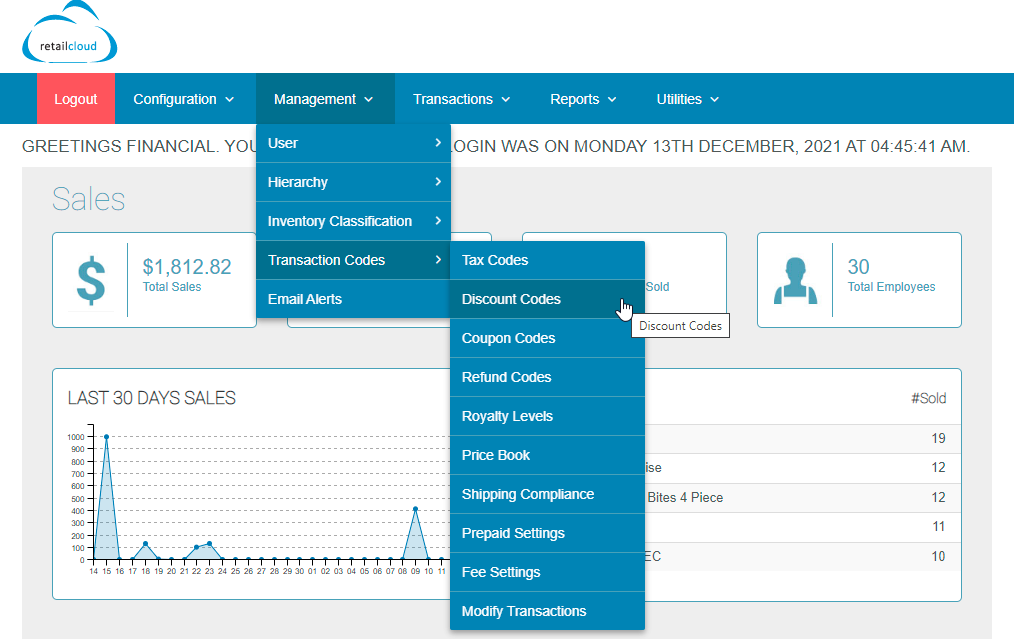
Step 2: Create the discount, name the discount, specify the percent over cost, date range and save.

Step 3: When ringing items on POS - apply this discount as an item level for an individual item, or transaction level to apply to all items
Articles in this section
- Central Administration System
- Configuration
- Company Details
- Company Information
- Payroll Settings
- Merchant Email Configuration
- Invoice Setup
- QSR
- Payment Settings
Comments
Please sign in to leave a comment.