Service Order is a comprehensive order management functionality designed to streamline order processing for retailers who process a high volume of orders, including mail-order, telephone-order, and E commerce merchants. Manages the complexities of service orders and handles the entire service order life cycle process with ease.
Creating Service Orders
To create a service order follow the instructions below :
- Place the items/products into the cart which the customer is potentially going to purchase, by manually entering or scanning barcodes).
- Assign Customer to the order, Click on Find Customer → Search for the Customer and add to the order. Customers are mandatory for service order creation.
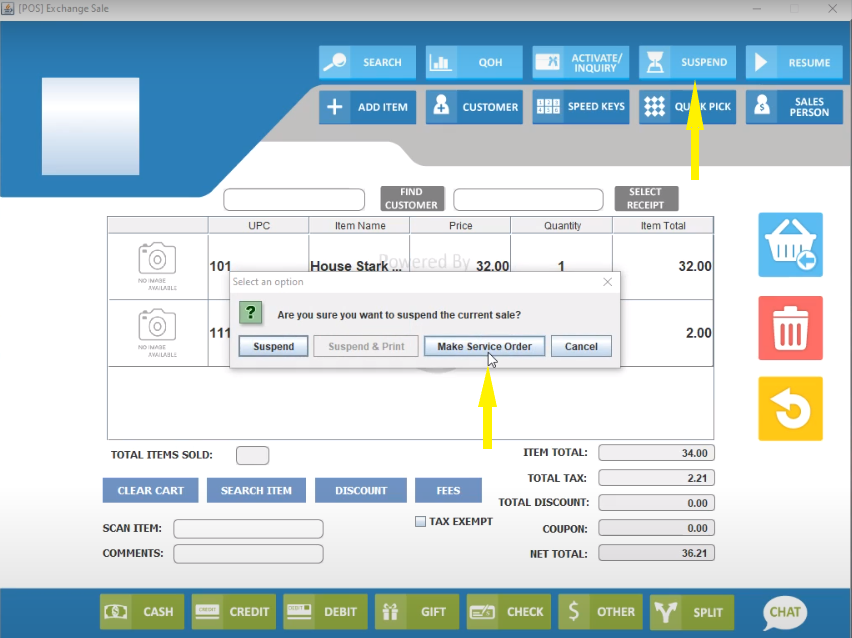
- Once the customer is added, click on the ‘Suspend’ button → ‘Make Service Order’. This leads to a page for service order creation.
- Enter the ‘Delivery Date’ or select the date from the calendar provided by clicking on the ‘Choose Date’ button.
- Provide the address details such as Delivery Address and Billing Address. If the billing and delivery address is the same, check the ‘same as Delivery Address’ box to auto populate the billing address.
- Add Notes or Comments in the field provided if you want to convey any particular information.
- Item Details will show the details of order items with ItemID, Item Name, Unit Price, Quantity and Status. Select any particular item by clicking on it ,if you wish to edit/alter the item details such as quantity, price etc.
- Click on ‘Save’ to create an order. The order thus created will be in the ‘Initiated’ status.
- Click on the ‘Print’ button to print the order receipt .

Orders can be retrieved any time and assign order status accordingly. When the order fulfillment stage (picking & packaging of inventory) is completed,the status can be changed to ‘Fulfilled’. The available statuses are : Initiated, Order Placed, Processed, Partially Paid, Paid, Cancelled, Fulfilled, Suspended & Under Process.
Order Lookup
- ‘Click on ‘Resume’ button → Service Orders. This will display all the service orders created.
- Orders can be filtered by order status or by Customers. Order Number can also be manually entered to find the order.


Edit Order
- Click on ‘Resume’ button → Service Orders. This will display all the service orders created.
- Select any order, click on the ‘Edit’ button to make changes to the service order created.
Checkout Orders
- To check out the order, click the ‘Move to Cart’ button. This will take you to the transaction cart with the particular service order items.
- Make Partial or Full Payment by selecting the tender type and pay later.
Articles in this section
- Getting Started
- Setup
- Installation & Download
- Uninstallation
- Training Mode
- Signing In
- Clock In/Clock Out
- Configure
- Setup
- Terminate
Comments
Please sign in to leave a comment.