Navigate to Utilities → Import → Inventory Transfer Import
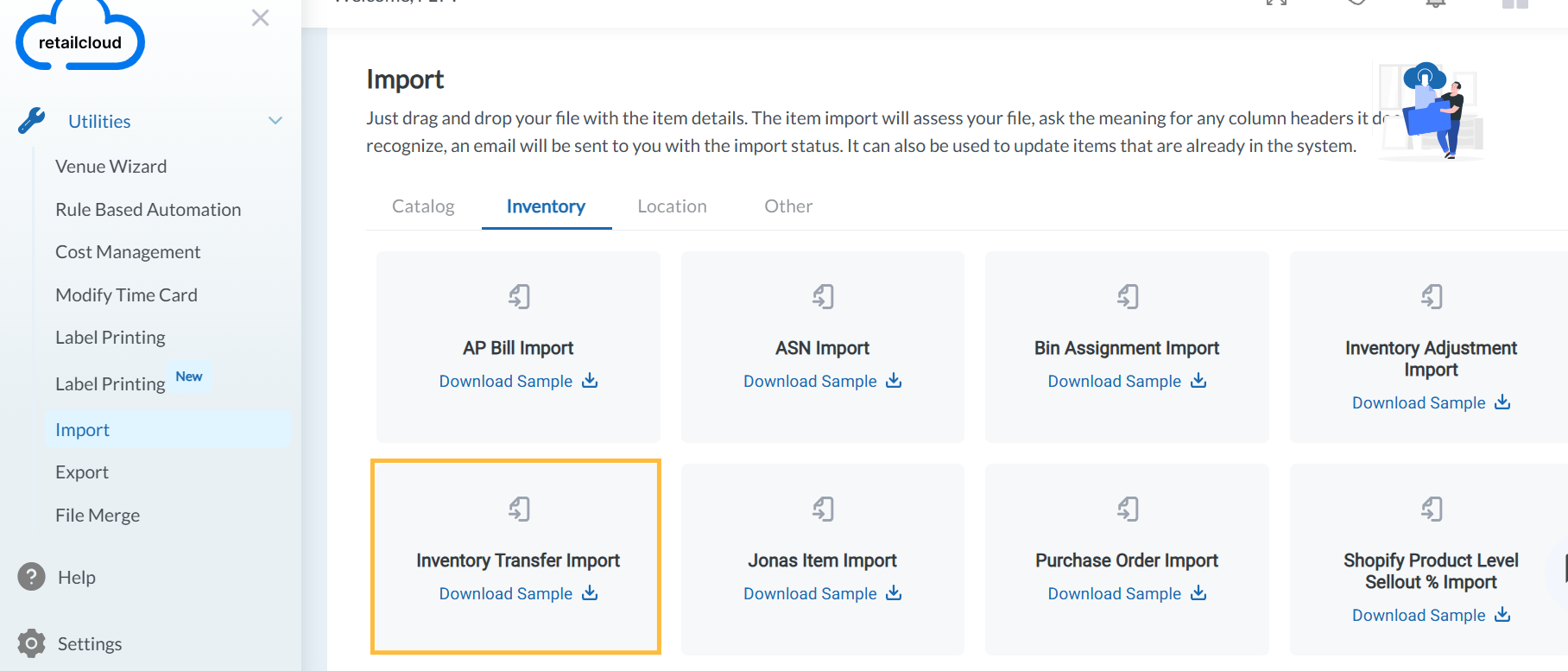
You'll need access to a spreadsheet program that supports CSV files such as Excel or Google Sheets. Any other file type will not import.
You can download the sample template by clicking on the Download Sample link.
The mandatory fields for import will be preselected, you also have the option to select the other required fields and download the CSV file sample.
Now, when you are ready with the import file, process it with the steps below.
Importing Inventory Transfer
- Go to Utilities → Import→ Click on Inventory Transfer Import.
- Upload Your File: Attach the Item file by simply Drag & Drop or uploading your CSV file directly from your computer by browsing for it.
- Click Continue when done.
- Column Mapping: Once the file is loaded the column headers from the file will be displayed below the heading ColumnName. In the case of the column header from the file exactly matching the Console field name this will be automatically mapped and this is displayed in the Map to Field.
- You can map and make sure all of the column field data you're importing has been matched to its equivalent setting on Console.
- Enter the email address to which you will receive the status of your import.
- Click Continue.
- The Import will be Initiated → Click Finish.
- You will be taken back to the Import page, where at the bottom you can see a section 'Recent Imports' which will show the details and current status of the imported file.
- Click on the Status (highlighted in blue color) to view the Status Report- This will list both Imported Records as well as Failed Records with a reason for the failure. You also have the option to Download the Failed Records by clicking on the Download button. You can correct the remaining failed record and precede to reimport them.
- Once done, you can see the Status as COMPLETED
Inventory Transfer Imports now require a "Reason Code" column. It can be either the reason description or the code
If the Reason Code field is left blank in the import file, the system will automatically assign a default reason code to the transaction.
This ensures that inventory transactions are not blocked and are always recorded with a valid reason.
To apply a specific reason code during import:
Add a column header named Reason Code in the import file.
Enter a valid reason code value for each row.
The system will validate the entered reason code against the reason codes available in the Console.
Important:
If an invalid reason code is provided, the import will fail with a clear error message.
Blank values in the Reason Code column are not allowed when the column is present.
Articles in this section
- Item Import Field Descriptions
- Overview
- Merchant Onboarding
- Navigation Bar
- Reports
- Items
- Settings
- Dashboard Overview
- Company
- Register
Comments
Please sign in to leave a comment.