retailcloud supports journal posting to MS Dynamics Great Plains (GP) which is the legacy accounting solution supported by Microsoft, allowing businesses to seamlessly integrate their sales and inventory data with the legacy accounting system.
How to use account Posting
- Navigate to Settings → Integrations → Account Posting.
- This opens the Account Posting page, where users can manage postings.
Sales Posting – Select the Date Range (From Date, To Date), choose a Batch Type (Single Batch or Daily Batches), and select Post Date. Click Preview to review the data or Post Journal to send transactions to ERP.
Inventory Posting – Select the Date Range (From Date, To Date), choose a Batch Type (Single Batch or Daily Batches), and select Post Date. Click Preview to review or Post Inventory to update records in ERP.
Voucher Posting – Click on “Voucher Lookup” to search and add vouchers, then select Post Date. Click Preview to review the data or Post Vouchers to update voucher records in ERP.
Adjustment Posting – Click on “Adjustment Lookup” to search and add adjustments, then select Post Date. Click Preview to review the data or Post Adjustments to update records in ERP.
- The Recent Postings grid will update automatically upon successful posting.
Note:
- We’ve added a short waiting period to the “Post Journal” button to prevent duplicate journal entries and improve system reliability.
- Now, when a user clicks the Post Journal button, all journal-posting buttons on the page (including the main one) will be temporarily disabled for 60 seconds. During this time, the buttons will appear greyed out and cannot be clicked.
- After 60 seconds, the buttons will automatically become active again and return to their usual appearance.
- This change helps ensure that only one journal entry is created per action, preventing system overload and eliminates the issues previously faced such as accidentally posting multiple times.
Preview Data & Batch Options You can now review data before it is sent to Great Plains using the Preview button.
Availability: The preview feature is available for date ranges of 7 days or less.
Single Batch: Displays a single data grid with a "Download CSV" option.
Daily Batches (Sales & Inventory only): Displays a list of files (one per day). You can click individual files to view them or use "Download All as ZIP" to get all files at once.
Actions: From the preview window, you can Post Data to confirm the sync or Close to cancel without posting.
Viewing Recent Postings
- The Recent Postings grid displays a list of past postings, including:
✔ Posting ID (Job ID)
✔ Type
✔ Status (Pending, Processing, Completed, or Failed)
✔ Initiated By (User who triggered the posting)
✔ Initiated On (Date & Time of initiation)
✔ Completed On (Date & Time of completion, if applicable) - The grid automatically updates when a new posting is made.
- If successful, the journal entry is recorded in Great Plains, and the status updates to Completed.
- If an error occurs, the status updates to Failed, and the user is notified.
Voucher Posting
Users will have option to lookup for voucher using Receiving Transaction #, PO#/PO Name and vendor filter.
Selected vouchers will be seen in green as "2 Vouchers selected" which on clicking will display the list of vouchers selected in a pop-up.
Post Date: Users can select this to indicate the posting date for the vouchers.
Post Vouchers: Users can click Preview to view the generated journal data in a grid before finalizing. Upon clicking the "Post Voucher" button, the selected vouchers will be posted to GP.
The posted journals will be displayed on the console's account posting UI, similar to the workflows for sales and inventory.
Adjustment Posting
Adjustment Posting in Account Posting is used to help businesses maintain accurate inventory and accounting records between retailcloud and Great Plains (GP). Adjustment Posting has been introduced to help maintain accurate inventory records. If the cost or quantity of received items is modified after being posted through Inventory Posting, discrepancies can arise between the records in retailcloud and Great Plains (GP). This misalignment can lead to accounting inconsistencies, making it essential to track and post adjustments properly.
Users have the option to lookup for adjustments using Transaction #, Location (Store/Warehouse) and Adjustment Type (Standard Adjustment, Full Reconciliation, Negative Quantity Reset, Receiving Adjustment, Inventory Write Down, Return to Vendor, COGS Adjustment) filter.
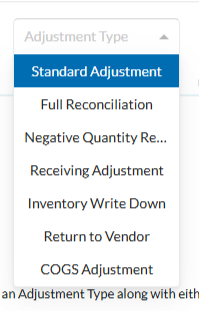
Selected adjustments will be seen in green, as "2 Adjustments selected", which on clicking will display the list of adjustments selected in a pop-up.
Clicking this indicator opens a pop-up showing the details of the selected adjustments, including:
- Transaction #
- Committed Date
This helps users quickly confirm that the adjustments align with the correct posting period before moving forward with posting.
From the pop-up, users can:
- Clear All – remove all selected transactions in one click.
- Delete individually – click the X mark next to a transaction to remove it from the list.
Post Date: Users can select this to indicate the posting date for the adjustments.
Post Adjustments: Users can click Preview to view the generated journal data in a grid before finalizing. Upon clicking the "Post Adjustments" button, the selected adjustments will be posted to GP.
The posted journals will be displayed on the console's account posting UI, similar to the workflows for sales and inventory.
Any cost or quantity modifications to previously posted merchandise receiving will now be tracked. A new adjustment type: "Receiving Modifications" has been introduced to categorize these changes.
Articles in this section
- Item Import Field Descriptions
- Overview
- Merchant Onboarding
- Navigation Bar
- Reports
- Items
- Settings
- Dashboard Overview
- Company
- Register
Comments
Please sign in to leave a comment.