The Receiving Adjustment Custom Report is designed to give users a clear comparison between original receiving transactions and any subsequent receiving adjustments.
This report helps identify operational and financial impacts caused by adjustments - especially those made after the items have already been received or sold.
By highlighting these differences, users can better understand how late changes affect inventory accuracy, costs, and reporting consistency.
Provides side-by-side comparison of original receivings and their related adjustments.
Displays item-level details, including cost and quantity changes.
Supports filtering by date, venue, location, and vendor for precise analysis.
Delivers the final report directly to your email in CSV format for easy review and sharing.
You can access this report from:
Reports → Custom Reports → Receiving Adjustment Report
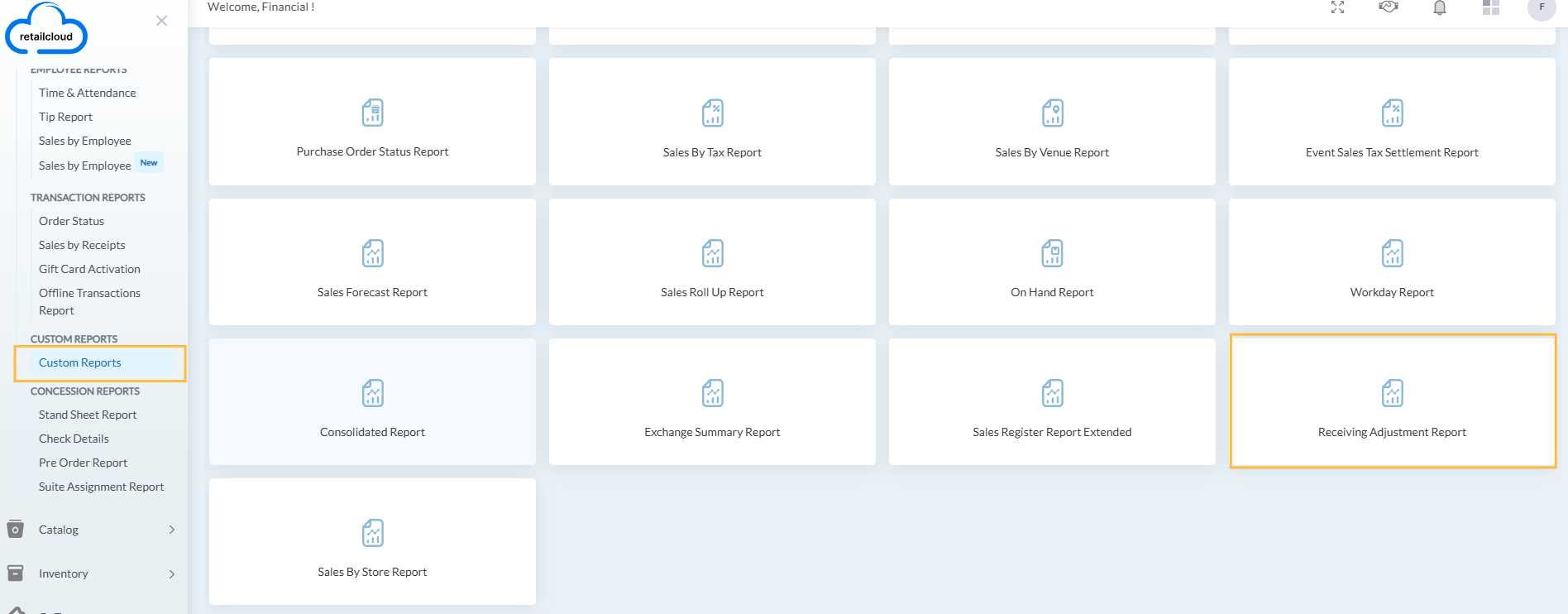
Select a date range for your report.
Choose relevant filters like Venue, Location (Store or Warehouse), and Vendor.
Enter your email address to receive the report.
Click Export.
- Once submitted, the system will process your selections and send the generated CSV file to your inbox.
Report Details
The report includes the following sections:
- Item Details: Describes the product associated with the receiving record.
- Item ID
- UPC
- Item Name
- Original Receiving Details: Displays the original receiving transaction details, including cost and quantities.
- Receiving #
- Receiving Date
- Received By
- Received Qty
- Item Cost
- Ext. Cost
- Adjusted Receiving Details: Shows the corresponding receiving adjustment made to the original entry.
- Receiving Adjustment #
- Receiving Adjustment Date
- Adjusted By
- Adjusted Qty
- Adjusted Item Cost
- Adjusted Ext. Cost
The report displays original and adjusted receiving records side-by-side for easy comparison.
Articles in this section
- Item Import Field Descriptions
- Overview
- Merchant Onboarding
- Navigation Bar
- Reports
- Items
- Settings
- Dashboard Overview
- Company
- Register
Comments
Please sign in to leave a comment.