Gift cards provide businesses with a convenient way to increase sales and improve customer loyalty. By offering gift cards, you allow customers to purchase prepaid credit that can be redeemed later for goods or services.
In the POS system, merchants can integrate with multiple gift card processors to manage gift card operations seamlessly, including:
Selling gift cards to customers
Activating purchased gift cards
Performing balance inquiries
Accepting gift cards as a form of payment
What is a Gift Card Integration?
A gift card integration connects the POS system with supported third-party processors. This ensures that all gift card transactions - whether selling, activating, or redeeming - are processed securely and recorded accurately.
Depending on your business needs, you can configure and use different processors such as STS, Factor4, CLUTCH, Givex, YinzCam, CAYAN, and others.
Setting Up Gift Card Processors in ZeroPOS
Follow the steps below to configure a gift card processor:
Navigate to Configurations → Payment → Gift.
This opens the Gift Card Settings page.
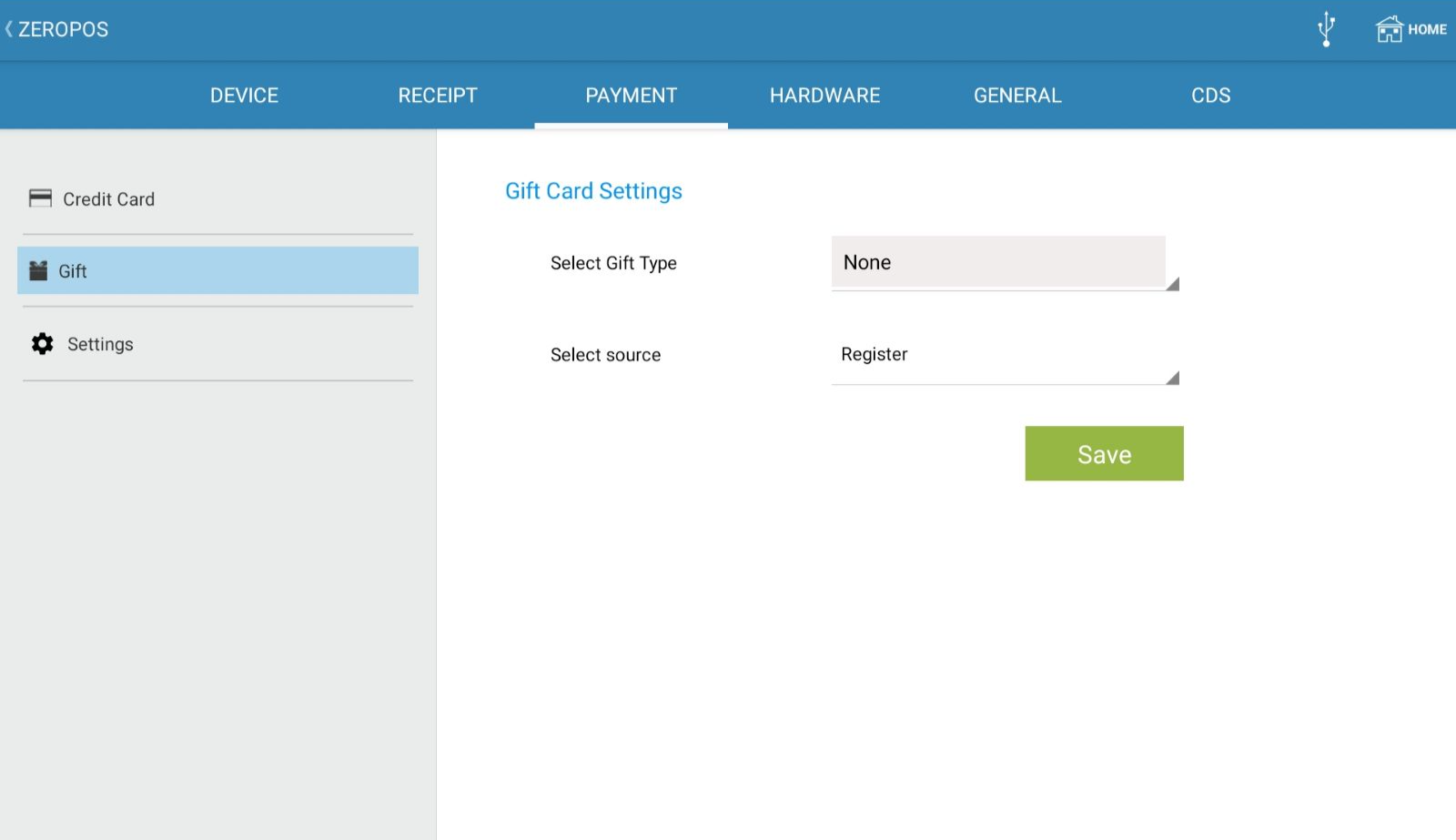
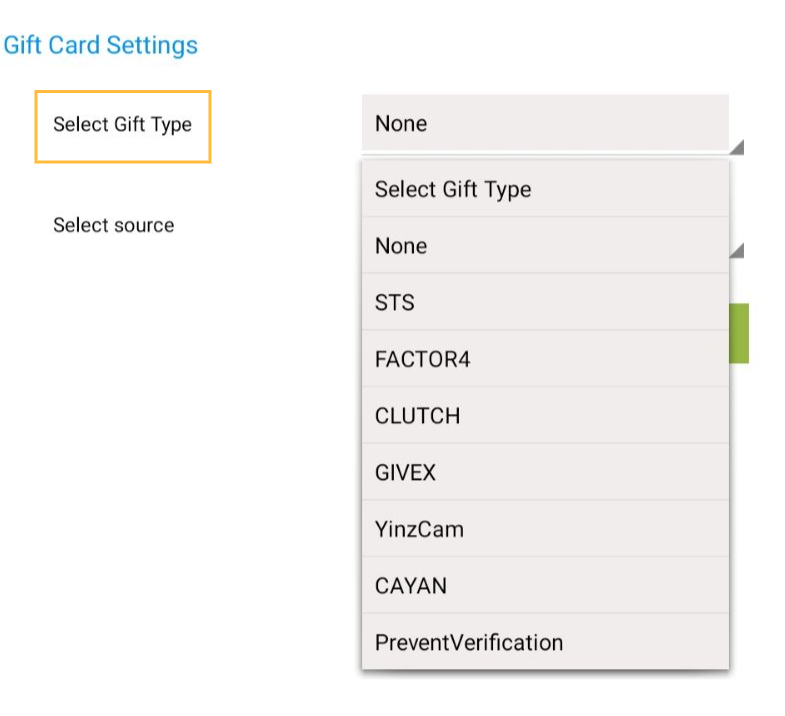
Under Select Gift Type, choose the desired processor from the dropdown. Options include:
None
STS
Factor4
CLUTCH
Givex
YinzCam
CAYAN
Prevent Verification
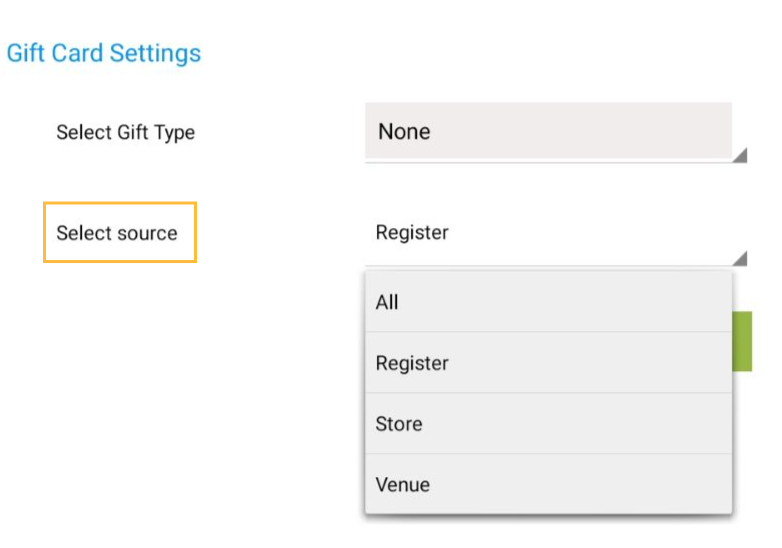
Under Select Source, define the scope of the gift card setup. Options include:
All (applies globally)
Register (specific to one register)
Store (specific to one store)
Venue (specific to one venue)
Enter the gift card credentials provided by your processor (gift card credentials will differ for each gift card types).
Highly Recommended: User can configure credentials in Console, so settings remain intact even if the POS app is reinstalled.
Click Save.
Once activated, your POS is ready to process gift cards using the selected provider.
Gift Card Workflow
There are five main steps for using gift cards in POS:
Configure your gift card processor (Console and POS)
Create gift card items
Sell gift cards to customers
Activate purchased gift cards
Perform balance inquiries and accept payments
Step 1: Creating Gift Card Items
Before you can sell gift cards, you need to create a special Prepaid / Service Item.
Navigate to Master Item.
Create a new item with the item ID and UPC as GIFT with a Cost and Selling Price of $0.00. The Item Type needs to be Service Item / Prepaid Item
Save the item.
This item will represent a “blank” gift card product that can later be sold and loaded with any desired amount.
Step 2: Selling Gift Cards
To sell a gift card:
Add the GIFT item (created in Step 1) to the cart.
Enter the amount the customer wishes to load onto the card.
Collect payment using any available tender type (Cash, Credit, Debit, Check, etc.).
Print the receipt and note the Transaction Number.
At this point, the gift card has been sold, but it is not yet active. The next step is activation.
Step 3: Activating Gift Cards
To activate a purchased gift card:
From the Transaction Screen, swipe left to access the Cart Navigation Bar.
Select Gift Card Activation.
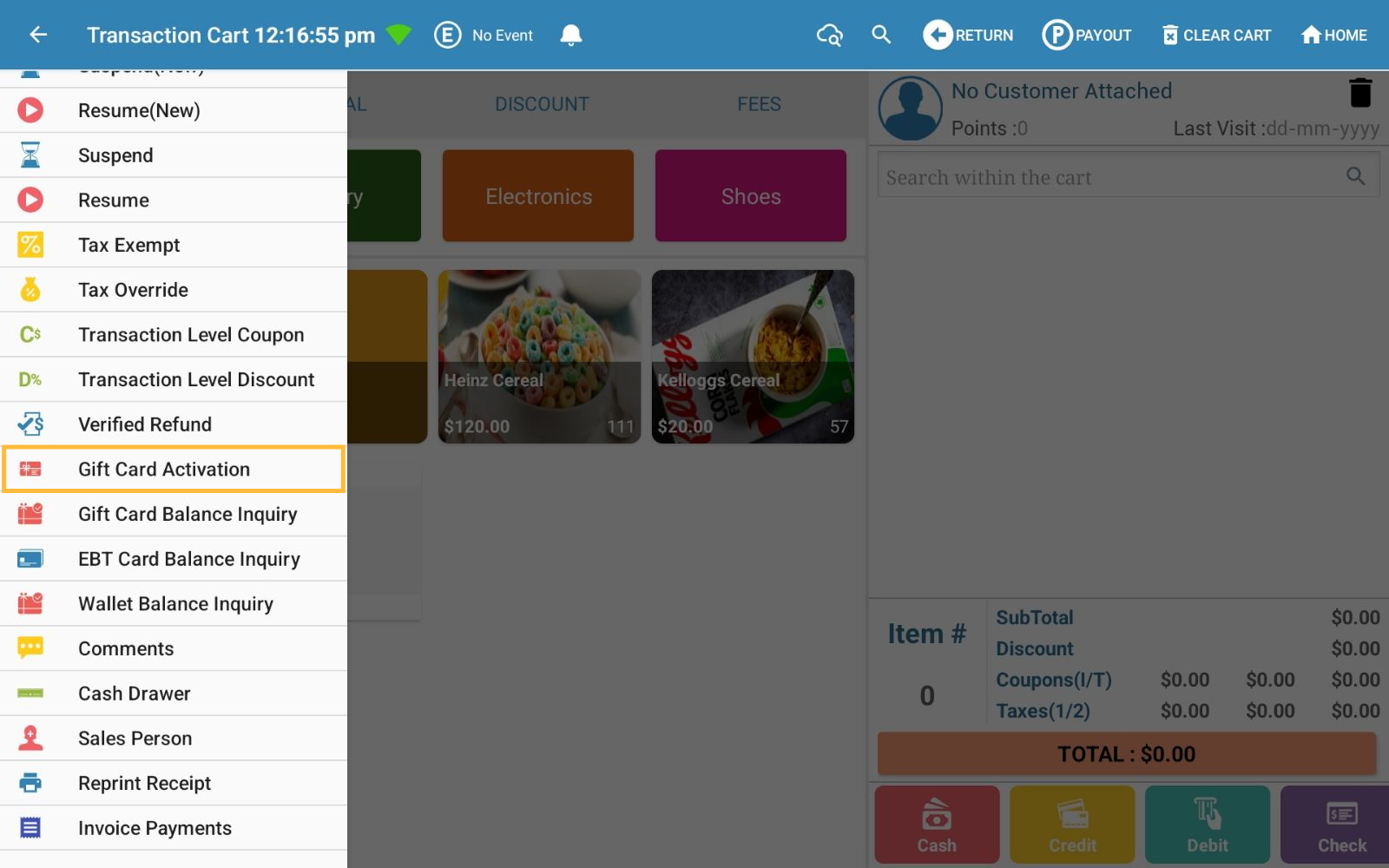
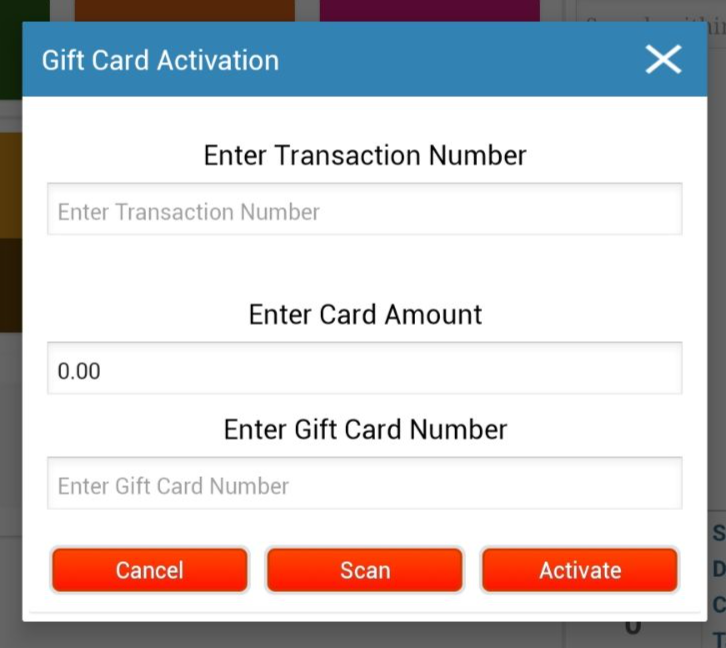
A pop-up window will appear, prompting you to:
Enter the Transaction Number
The system will display the prepaid amount as “Amount Available for Activation: $X”.
Enter the Card Amount you wish to activate
This amount must be less than or equal to the available balance.
Example: If $100 was purchased, you can activate $50 now, and activate the remaining $50 later.
Scan the Loyalty QR Code or manually enter the Gift Card Number
Click Activate to confirm, or Cancel to exit
A confirmation message will display once the activation is successful.
Step 4: Balance Inquiry
Customers may want to check the remaining balance on their gift cards.
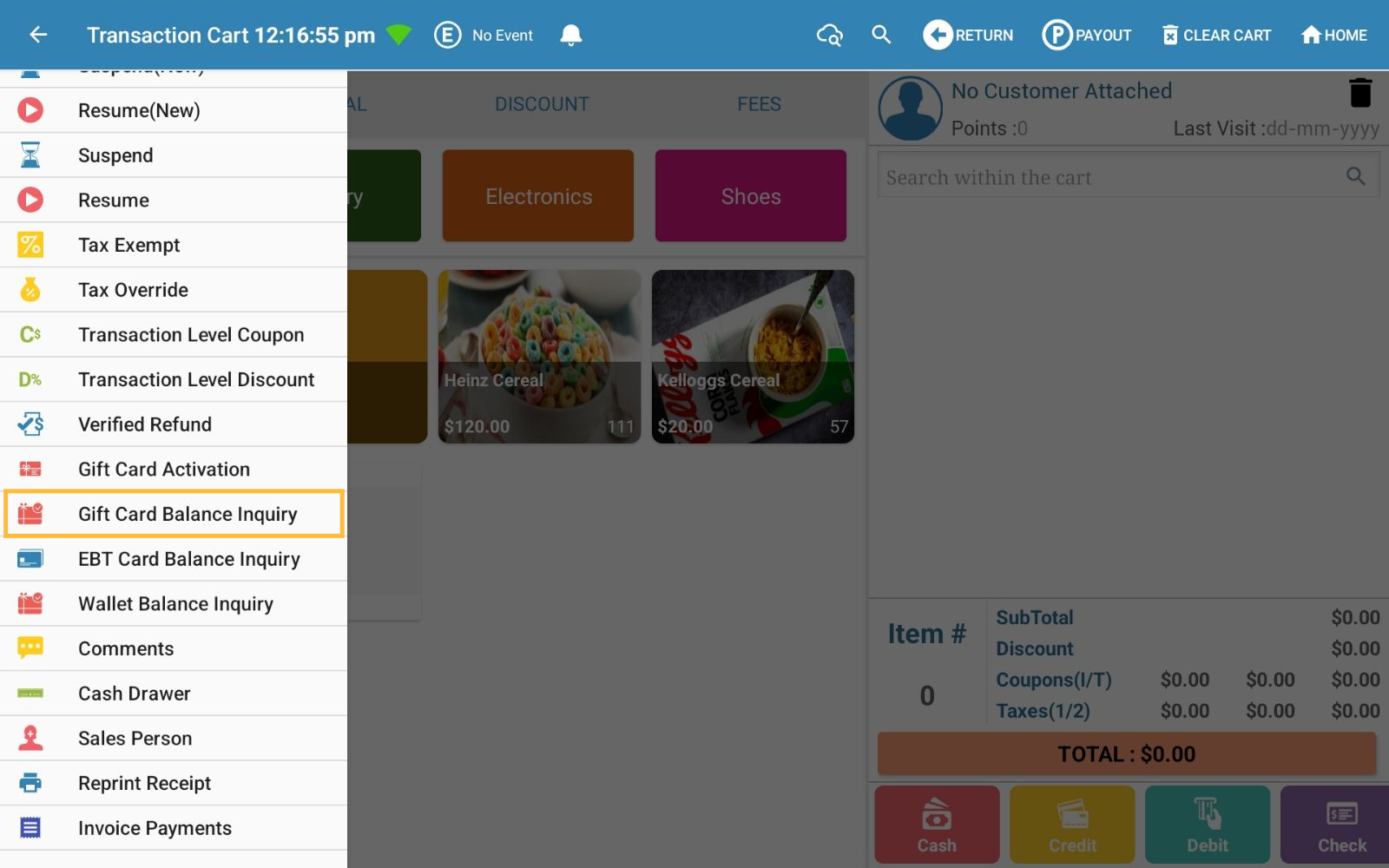
Navigate to Cart Navigation Menu → Gift Card Balance Inquiry
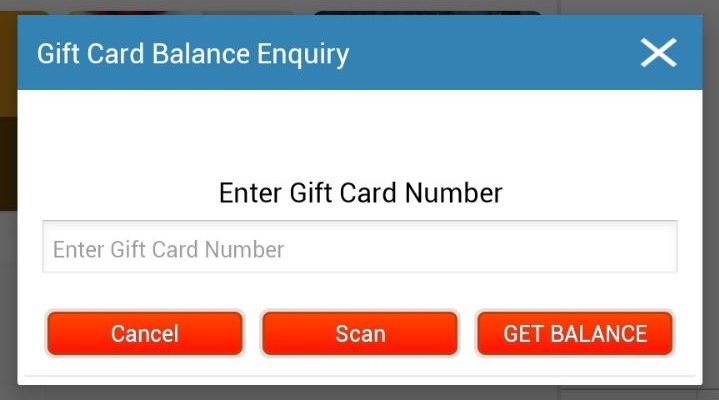
In the pop-up window:
Either scan the Loyalty QR Code, or
Enter the Gift Card Number manually
Use the available actions:
Cancel – Exit the process.
Scan – Scan the card QR code.
Get Balance – Display the current card balance.
Step 5: Accepting Gift Cards as Payments
To accept a gift card during checkout:
Add items to the cart.
Select Gift as the tender type.
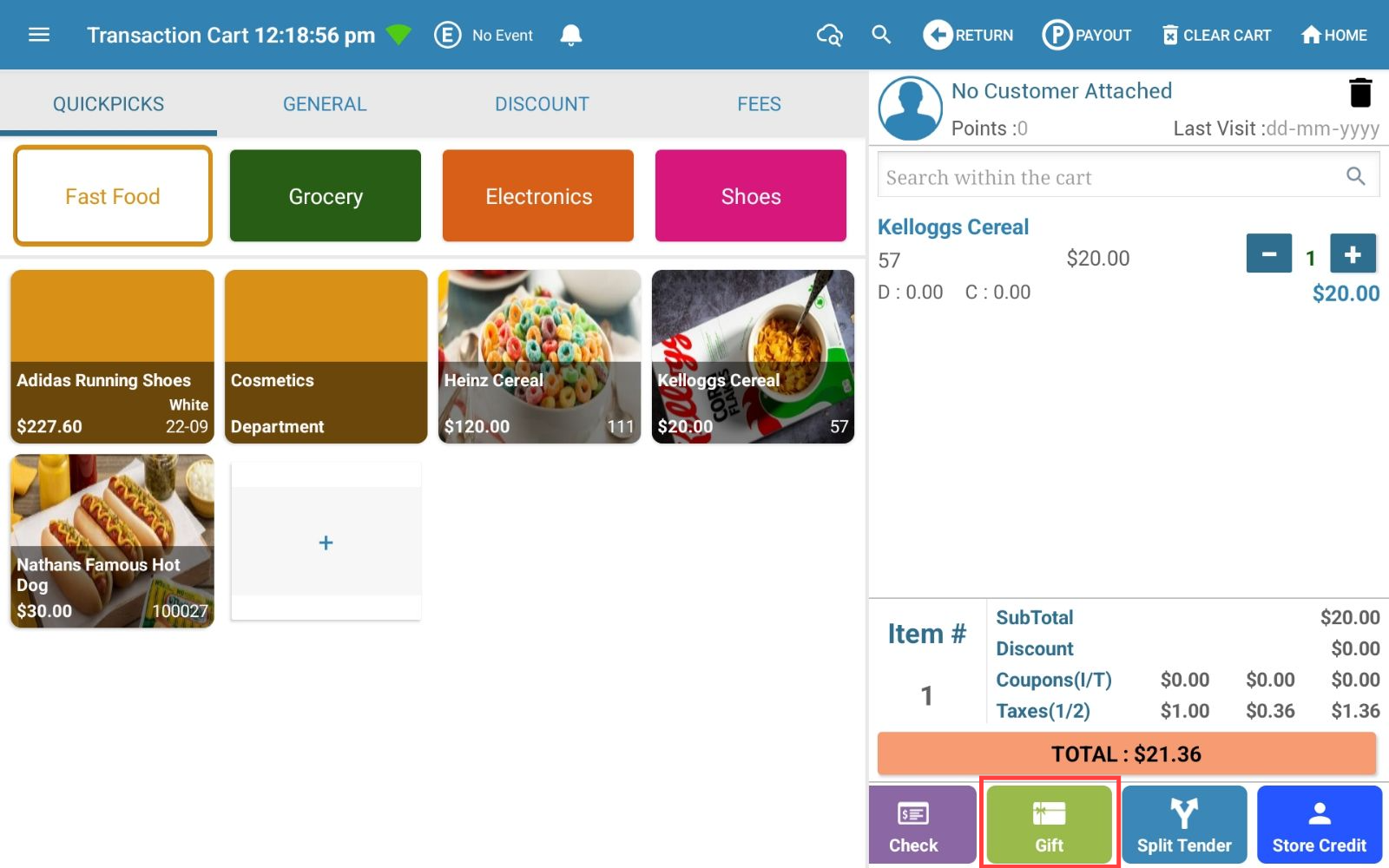
Enter the Gift Card Number or swipe/insert/tap the card (if supported).
Submit the payment
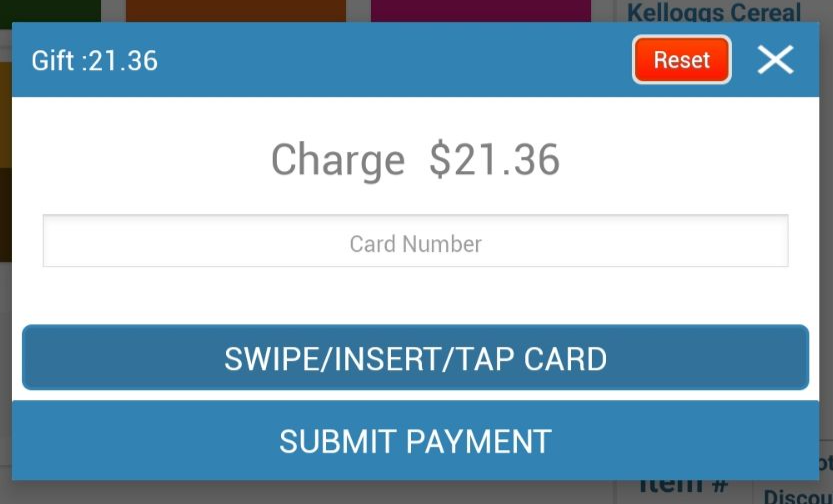
The transaction will process using the gift card’s available balance.
Refund to Gift Card
ZeroPOS now supports refunding return amounts directly to a gift card within the existing refund flow. This allows cashiers to quickly issue store credit without needing to go through a separate gift card activation process.
The refund amount is automatically calculated by the system and loaded directly onto the selected gift card in a single, seamless workflow.
How It Works
During a refund transaction, cashiers can now select Gift Card as a refund tender option.
Once selected:
- The cashier can:
- scan a gift card, or
- manually enter the gift card number
- The refund amount is automatically populated based on the return total
- The amount cannot be edited manually
- The refund value is immediately loaded onto the gift card once the refund is completed
This supports both:
- existing active gift cards, and
- new gift cards (if allowed by the configured gift card processor)
Support for Gift Card Reading on Ingenico Lane (3000/3600/5000) Devices via FreedomPay
Merchants using Ingenico Lane 3000/3600/5000 devices integrated with FreedomPay can now seamlessly read and process gift cards (STS, Clutch, Factor4) directly from these terminals. Previously, this functionality was only available on PAX devices.
Gift Card Read Support: You can now swipe or insert gift cards on Ingenico Lane devices to capture the card number.
Manual Entry Option: If a physical swipe is not possible, the gift card number can also be entered manually from the POS screen.
Seamless Integration: The captured card number is passed directly to STS, Clutch, or Factor4 for redemption without triggering any payment authorization.
Consistent gift card processing across Ingenico Lane and PAX devices.
Improved customer experience with faster and more reliable gift card redemption.
Flexibility to process gift cards via swipe or manual entry, reducing transaction bottlenecks.
How It Works
When a gift card is swiped/read, the POS retrieves the card number and routes it securely to the appropriate gift card provider.
For ISO cards, data may be encrypted unless the card BIN is pre-whitelisted with FreedomPay. (Merchants can work with FreedomPay to configure BIN ranges if needed.)
- If your business requires support for ISO cards with specific BIN ranges, you’ll need to coordinate with FreedomPay to enable BIN whitelisting.
Articles in this section
- Getting Started
- Settings
- Transaction Tab
- Item
- Customer
- Reports
- QSR
- retailcloud chat
- Re-Registering ZeroPOS
- Common Issues
Comments
Please sign in to leave a comment.