This guide outlines the steps for processing refunds and exchanges on the ZeroPOS system, including options for verified and unverified refunds.
Processing a Refund
ZeroPOS offers two methods for processing refunds:
- Verified Refund (requiring a transaction number/receipt)
- Refund Without Verification.
Verified Refund (with Receipt/Transaction #)
This feature requires the cashier to have a valid sales receipt number or transaction number to process a refund.
1. Enabling Verified Refund:
- On the POS, navigate to the Configuration Tab.
- Go to General -> Transaction.
- Enable the "Enable Verified Refund" option.
2. Processing a Refund with Verified Refunds Enabled:
- On the sales transaction screen, press the "Return" button at the top of the screen.
- Scan the barcode on the bottom of the receipt into the box that says "Transaction Number."
- If a receipt is not present, you will need to enter the transaction # (format: 2016/X/X/XXX).
- The transaction # may also be available from the list, if sold at the same store.
- A transaction number is required to process a refund.
- Once the transaction number is entered, you will be asked: "Do you wish to return all items?" (Return Payment/No/Ignore).
- If "Return Payment": All items from the original receipt are placed into the cart for return. You can delete any items from the cart that are not being returned. Items in the cart for return will appear in Red.
- If "No": The cart will not be populated automatically. You will need to manually enter (scan or add) the specific items from the original transaction that the customer wishes to return into the sales cart. These items will also appear in Red.
- If the customer only wants to return some items, press "No" (when asked "Are you returning all items?"). Then, scan or add the specific items they want to return. These items will appear in Red in the cart.
- Completing the Return:
- Select the tender type as usual (e.g., cash, credit card).
- If refunding to a credit card, the system will process the credit back to the original credit card used for the purchase.
- Once done, press the "Return" button again to add items normally if you were going to add new items (e.g., for an exchange).
Unverified Refund (Refund Without Verification)
This method processes a refund without requiring the original transaction number or receipt.
1. Disabling Verification:
- You must first disable the "Enable Verified Refund" option in the Configuration settings (as mentioned in the section above).
2. Processing a Refund Without Verification:
- Select the "Return" button at the top of the screen. The button will turn Red, indicating you are now in return mode.
- Press "OK" (if prompted).
- You will now add the items to the cart that you wish to return (e.g., by scanning them or looking them up). There will be no step requiring you to enter a transaction number.
- The items will enter the transaction at a negative total (e.g., -$10.00). Items in the cart for return will appear in Red.
- Completing the Return:
- Select the tender type as usual.
- If refunding to a credit card, the system will process the credit back to the original credit card used for the purchase.
Processing an Exchange
To perform an exchange, you will start with the refund process and then add the new items to the same transaction.
1. Begin with the Refund:
- Follow either the "Verified Refund" or "Refund Without Verification" steps above to add the items being returned to the cart. These items will show a (-) negative amount.
- Do NOT tender the refund yet.
2. Add Exchange Items:
- Before adding the items you wish to process as an exchange, ensure the "Return" option at the top of the screen has been turned OFF. This is indicated by the "Return" button being white instead of red. Press the "Return" button again if it is red to toggle it off.
- Once return mode has been turned off, add the items you wish to exchange for (e.g., by scanning or looking them up).
- You will see the items being returned show a (-) negative amount, and items being sold in the exchange will show at a positive amount.
3. Completing the Exchange:
- Observe the transaction total:
- If any refund is due to the customer (i.e., the returned items are worth more than the new items), the total will show as a (-) negative amount. Continue tendering the transaction to refund the customer the difference.
- If an amount is due to be collected from the customer (i.e., the new items are worth more than the returned items), the total will show as a positive amount. Continue tendering the transaction to collect the amount due from the customer.
- If the balance of the exchange transaction is $0, please select Tender "Even Exchange."
Store Credit (as Refund)
ZeroPOS offers the option to issue store credit in place of a cash or credit card refund.
1. Using Store Credit as a Refund Type:
- When a customer returns merchandise and opts for store credit instead of a cash or credit refund, you can select "Store Credit" as the tender type during the refund process.
- The value of the return will be loaded onto the customer's store credit balance.
2. Reporting and Customer Transaction History:
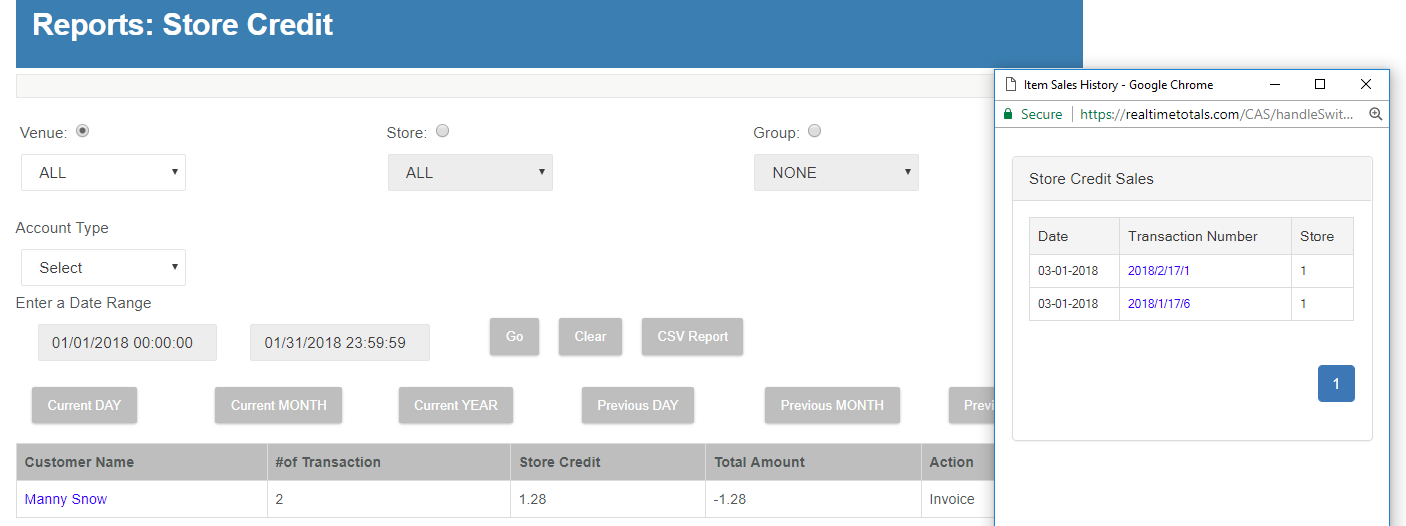
- A Store Credit Report is available, showing customer transactions with a net amount.
- Copies of sales receipts related to store credit transactions are also available from the Store Credit Report for additional detail.
- Customer Transaction History, pulled from the device or the web portal, shows store credits by the customer with available copies of the sales receipt.
Articles in this section
- Getting Started
- Settings
- Transaction Tab
- Item
- Customer
- Reports
- QSR
- retailcloud chat
- Re-Registering ZeroPOS
- Common Issues
Comments
Please sign in to leave a comment.