The new POS Configuration screen provides a single, centralized location to manage all POS-level and account-level settings across your venues, stores, and registers.
Previously, POS settings were managed individually within each store, making configuration updates difficult to maintain,especially across multiple locations.
Now all supported POS configurations can now be viewed, searched, and updated from one unified screen.
What is POS Configuration?
POS Configuration contains the operational settings that control how your POS, kiosk, or self-checkout devices behave.
These settings can include features related to:
- Checkout flow
- Payment handling
- Device behavior
- Customer-facing options
- Register-level preferences
- Venue/store-specific POS operations
Each configuration now includes:
- User-friendly descriptions
- Easy-to-understand values instead of numeric codes
Where to Find POS Configuration
You can access the new centralized screen from:
Settings → General → POS Configuration
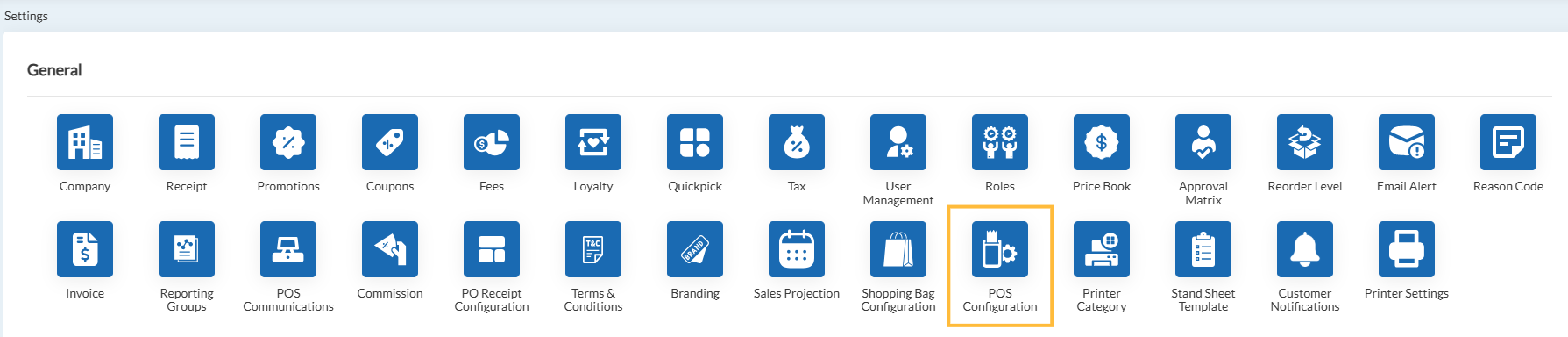
Note: The old POS Configuration tab inside individual Store setup has been removed.
All POS configuration updates must now be managed from this centralized screen.
POS configurations can be applied at three levels:
- Venue
- Store
- Register
At the top of the screen, you will see filter dropdowns for:
- Venue
- Store
- Register
By default, all filters are set to All.
How the Filters Work
- Selecting a Venue will display only the stores under that venue
- Selecting a Store will display only the registers under that store
This helps ensure that configurations are always applied to the correct location.
How Configuration Inheritance Works
The system follows a hierarchy-based configuration model:
Venue Level
A configuration set at Venue level will automatically flow down to:
- All child Stores
- All child Registers
Store Level
Store users can override the inherited Venue configuration if needed.
Register Level
Register users can further override the Store/Venue value for a specific terminal.
This gives you:
- Central control where needed
- Flexibility for location-specific exceptions
You can also use:
- Expand All → Opens all categories
- Collapse All → Closes all categories
Articles in this section
- Item Import Field Descriptions
- Overview
- Merchant Onboarding
- Navigation Bar
- Reports
- Items
- Settings
- Dashboard Overview
- Company
- Register
Comments
Please sign in to leave a comment.