We’ve introduced Stand Sheet Templates to make stand sheet creation and management more structured, reusable, and efficient.
Stand sheets were largely static and manually configured, which made it difficult to reuse layouts across stores, maintain consistent item ordering, or quickly update which items appeared in a stand sheet.
You can now create and manage stand sheet templates that can be reused, organized, and assigned to specific venues and stores, ensuring consistency and saving time. You can now:
Create and edit stand sheet templates
Duplicate existing templates
Name templates for easy identification
Set templates as active or inactive
Assign templates to a venue and one or more stores
Choose which items appear in the stand sheet
Each store can have only one active template at a time.
Once a template is created and activated, it will reflect in Servio exactly as defined.
Navigate to Settings → Stand Sheet Template
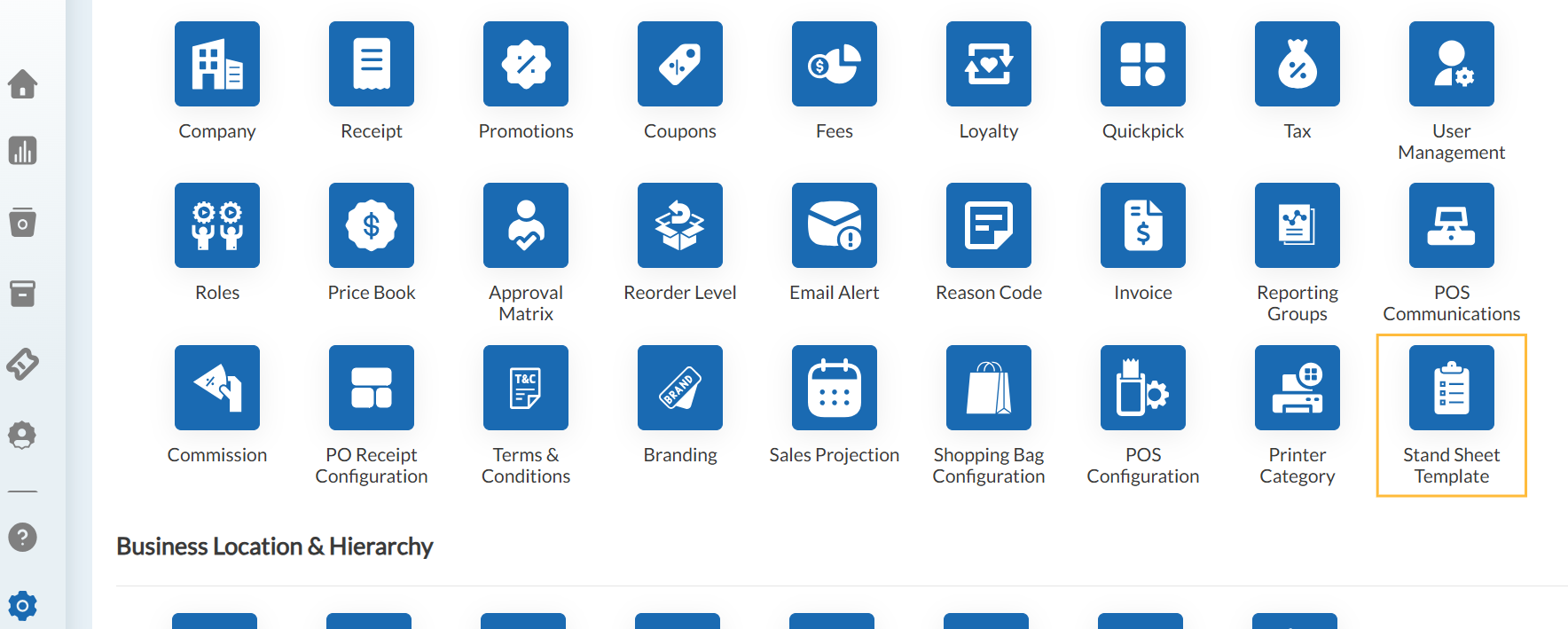
On this page, you’ll see a grid with the following details:
ID – Unique stand sheet template ID (clickable to view details)
Name – Template name
Number of Items – Count of items added to the template
Venue – Assigned venue
Store – Assigned stores (comma-separated if multiple)
Available actions:
Add Template
Edit
Duplicate
Delete
From the Stand Sheet Template page, click Add Template.
Enter the required template details:
Template Name
Venue (single-select)
Store (multi-select)
Activate Template toggle (enabled by default)
Add items using:
Item Lookup, or
Scan Item button
Once items are added, they appear in a grid showing:
Item ID
UPC
Item Name
Department
Category
Subcategory
Delete option per item
Click Save to create the template.
You can auto-sort items using attributes such as:
Department
Category
Subcategory
Color
Size
Style
Brand
When auto-sorting is applied:
The system automatically updates all sequence numbers.
You can still manually rearrange items afterward if needed.
If no manual changes are made, items follow this sort order Department >> Category >> Subcategory (alphabetically).
Articles in this section
- Item Import Field Descriptions
- Overview
- Merchant Onboarding
- Navigation Bar
- Reports
- Items
- Settings
- Dashboard Overview
- Company
- Register
Comments
Please sign in to leave a comment.