Introduced a time-based customer group assignments to support Salesforce (NGS) membership integration. With this, membership data is synchronized with retailcloud in near real time, and customer groups can be activated and expired automatically based on defined start and end dates to ensure membership status and associated benefits remain accurate across retailcloud.
Time-Phased Customer Group Assignment
To configure Start Date and End Date to Customer Groups, navigate to:
CRM → Customer → Info → Customer Groups
From here, user can define the Start Date & Time and End Date & Time.
How It Works?
- A group becomes active automatically when the Start Date & Time is reached.
- Before the start time, the group appears as Inactive.
- Once the End Date & Time is reached, the group automatically moves to Expired status.
- Expired Groups are moved to the Inactive Section.
- Show Inactive toggle allows the users to view expired or inactive groups when needed.
This ensures that memberships align precisely with their valid time period, without requiring manual activation or removal.
Customer Assignment Import
Customer Assignment Import allows bulk assignment of customer groups with time-based validity.
Navigate to Utilities→ Imports → Others → Customer Assignment Import
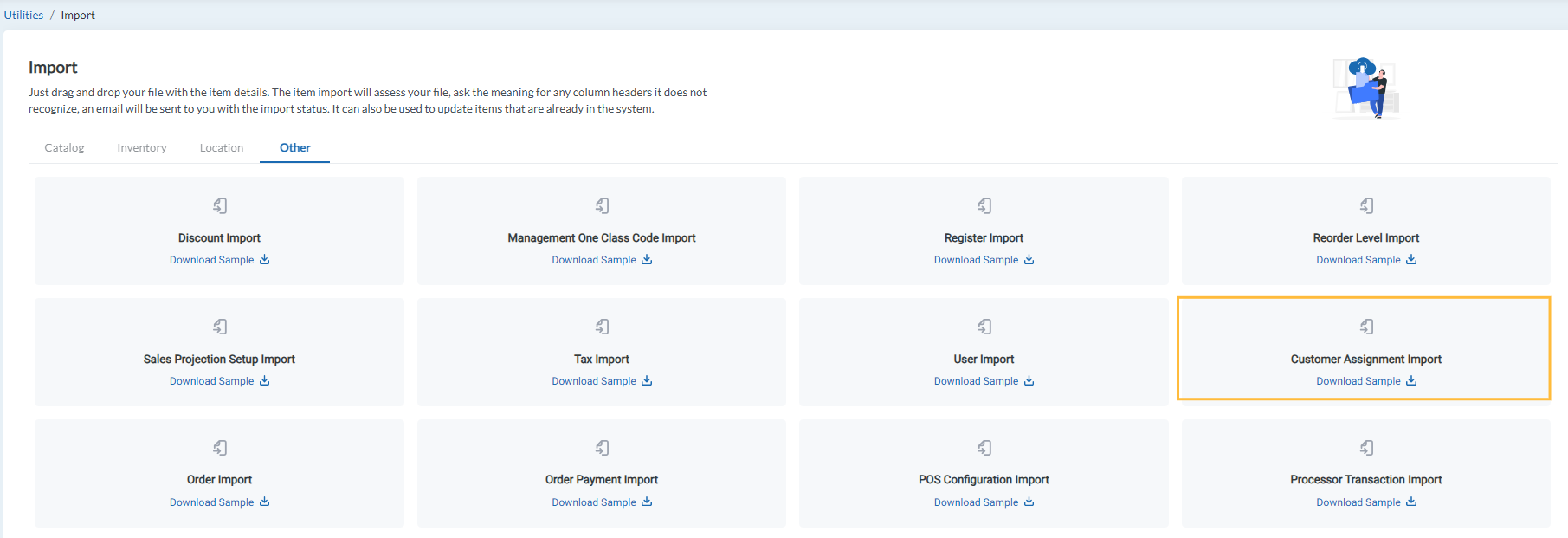
User can download the import sample file template by clicking on Download Sample link and input the data into the templates supported fields.
Import the edited file with information for the templates header and map the relevant fields during the import process.
Users will be taken back to the Import page, where at the bottom can see a section "Recent Import" which will show the details and current status of imported file.
Supported Fields:
- Customer #
- Assigned Groups
- Start Date & Time
- End Date & Time
This simplifies onboarding and large scale customer assignment updates.
Articles in this section
- Item Import Field Descriptions
- Overview
- Merchant Onboarding
- Navigation Bar
- Reports
- Items
- Settings
- Dashboard Overview
- Company
- Register
Comments
Please sign in to leave a comment.