Overview
The User Management section in Console allows businesses to create, manage, and control employee access across Console, POS, Partner Portal, and supported applications.
Using User Management, merchants can:
- Create employee accounts
- Assign roles and permissions
- Control location access
- Configure PIN-based sign in
- Enforce password security policies
- Manage user authentication and access restrictions
Accessing User Management
Navigate to:
Settings → General Settings → User Management
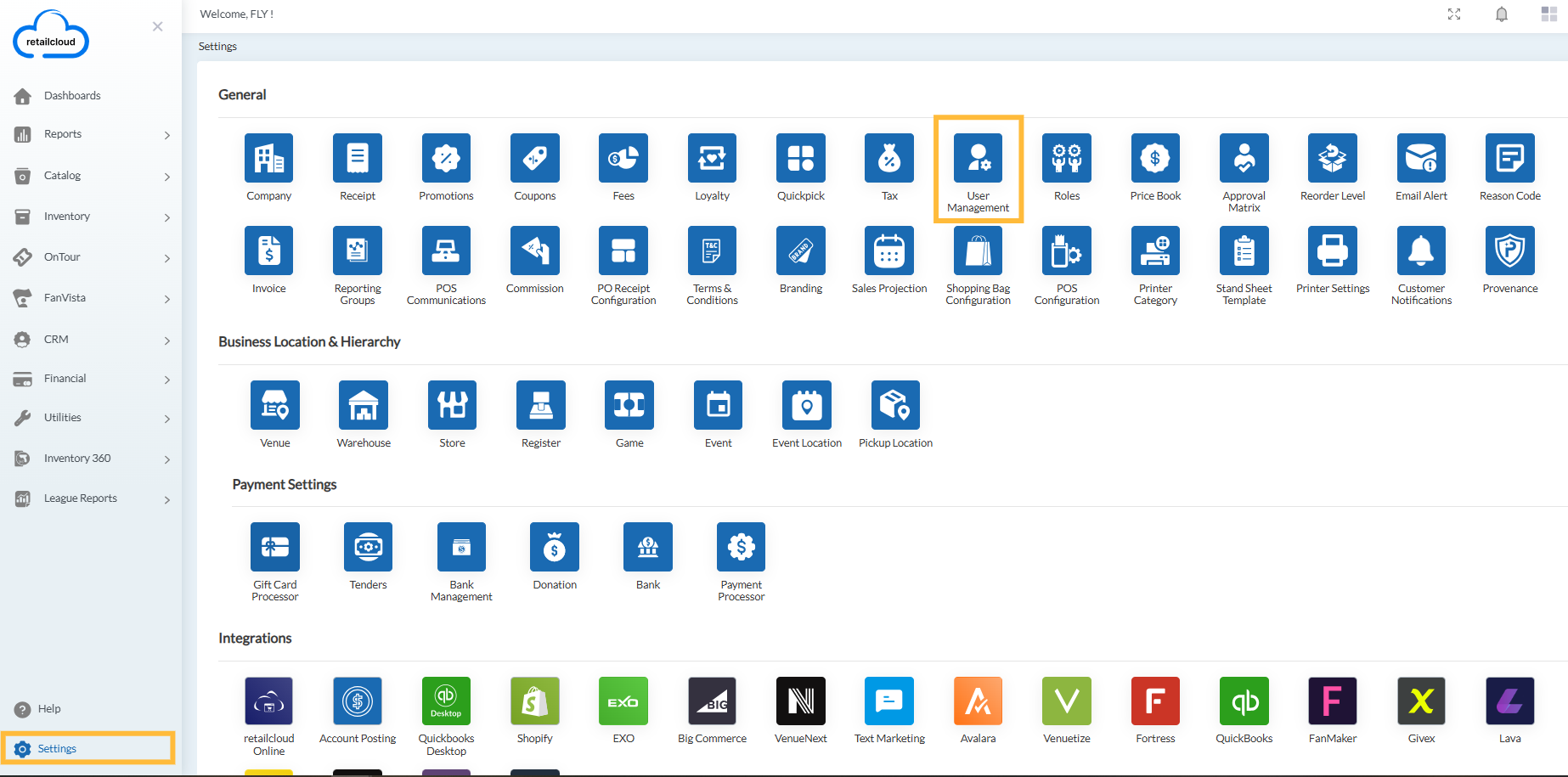
From this screen, merchants can:
- View all existing users
- Add new users
- Edit user details
- Manage location entitlements
- Activate or deactivate users
Understanding User Roles
Each user must be assigned a role. Roles determine which features, reports, and settings the user can access.
Common roles include:
System Admin
- Financial
- Accounting
- Client
- Venue GM
- Store Manager
- Supervisor
- Cashier
- Assistant Store Manager
- Temporary Employee
- Warehouse GM
- Zone Manager
- HR Manager
- Support Manager
- Vendor
- Server
- Committer
- Reviewer
- Runner
- Customer
Important
Users can only create or manage users with roles at or below their own permission level.
Example:
- A Store Manager cannot create a System Admin user.
- A Supervisor cannot create a Financial user.
Adding a New User
To create a new user:

- Navigate to Settings → General Settings → User Management
- Click Add User
- Enter the required user information
- Click Save
After saving the General information, Location Entitlements can be configured if needed.
Create/Edit User
This page contains the basic details required to create and manage a user account.
| Field | Description |
|---|---|
| Activate User | Enables or disables the user account. When disabled, the user can no longer log in to Console or POS. |
| Name * | Employee’s display name. |
| Authentication Type | Defines whether the user signs in using standard login credentials or SSO (Single Sign-On). |
| Username * | The unique username used for login. |
| Password * | The login password for the user account. Passwords must meet the configured password policy and cannot contain the username. |
| PIN | A numeric PIN used for faster login. PIN length can range from 4–20 digits.. |
| Role * | Determines the user’s permissions and access level within the system. Every user must be assigned a role. |
| Recommended for password recovery, notifications, and Forgot Password functionality. | |
| Date of Birth | Employee’s date of birth information. |
| Address Fields | Includes Address Line 1, Address Line 2, City, State, and Country information. |
| Phone | Primary contact number for the employee. |
| Country Code | Country dialing code associated with the phone number. |
| Mobile | Secondary or mobile contact number. |
| Venue | Associates the user with a specific venue available in Console. |
| Date of Joining | The employee’s joining date or profile creation date. |
| Type * | Defines whether the employee is Permanent or Temporary. |
User Creation Rules
The following rules apply when creating users.
Name Requirements
| Requirement | Details |
|---|---|
| Maximum Length | 50 characters |
| Allowed Characters | Letters, numbers, spaces, and supported special characters |
| Restricted Characters | Single quote ('), double quote ("), and question mark (?) |
| Leading Spaces | Automatically removed when saving |
Username Requirements
| Requirement | Details |
|---|---|
| Unique Username | Each username must be unique within the domain. |
| Maximum Length | 50 characters |
| Allowed Characters | Letters, numbers, spaces, and supported special characters |
| Restricted Characters | Single quote ('), double quote ("), and question mark (?) |
| Leading Spaces | Automatically removed when saving |
Important Notes: By default, only the following characters are restricted: ', ", ?. Additional special character restrictions for user management can be configured in the system configuration if required by the merchant.
User ID is automatically generated by the system upon user creation.
Password/PIN Rules
Password Requirements
Passwords login can be used on POS, Console and supported applications for authentication purposes.
| Requirement | Description |
|---|---|
| Allowed Characters | Passwords can contain letters, numbers, and special characters. |
| Restricted Characters | Single quote ('), double quote ("), and question mark (?) |
| Character Combination | Users can use uppercase letters, lowercase letters, numbers, or supported special characters in any combination. There is no mandatory requirement for a specific character type. |
| Username Restriction | Passwords cannot contain the user’s username. This validation is case-insensitive and applies during user creation, password reset, and password updates. |
| Password Expiration | Passwords expire every 90 days. |
| Password Update After Expiration | Once a password expires, the user must create a new password before continuing access to the system. |
| Forgot Password Support | Users can use the Forgot Password option to reset their password if they forget it or if the password has expired. |
| Password Reset Requirement | New passwords must follow all configured password policy rules, including username restrictions. |
PIN Requirements
PIN login can be used on POS and supported applications for faster authentication.
| Requirement | Details |
|---|---|
| Length | 4–20 digits |
| Format | Numeric only |
| Uniqueness | Must be unique per user |
| If users "Password" expires | System blocks PIN login even if the entered PIN is correct. User will be prompted to reset or update their password before they can continue using PIN login. |
Location Entitlement
Location Entitlements restrict which stores or locations a user can access.
By default: Users can access all store locations.
Restrictions are applied only after specific location entitlements are configured.
To Add Location Entitlements:
- Edit an existing user or create a new user
- Open the Location Entitlement tab
- Select the required store locations by selecting Store Lookup
- Click Entitle To User
Users will then only be able to access the entitled locations.
Articles in this section
- Item Import Field Descriptions
- Overview
- Merchant Onboarding
- Navigation Bar
- Reports
- Items
- Settings
- Dashboard Overview
- Company
- Register
Comments
Please sign in to leave a comment.