Roles are a named set of permissions you can assign to employees who share the same job. Roles make it easy for you to assign the same permissions to multiple staff, which is especially helpful as your business grows or you start opening more stores.
Permissions enable store owners to control which actions employees assigned to the same role can and cannot do in the POS software. This is especially useful for limiting the things that certain user roles can or cannot do without manager approval—like modifying inventory levels, changing a product’s price, or applying discounts to a sale.
The Console portal allows merchants to update different roles and choose what permissions those user roles have. Specific users who do the same jobs can be set up so that they have identical access. For instance, you might have Store Manager, Supervisor, and Cashier roles configured.
To review and edit permissions enabled for each of your user roles, follow the steps below:
- Go to Settings → General → Roles.
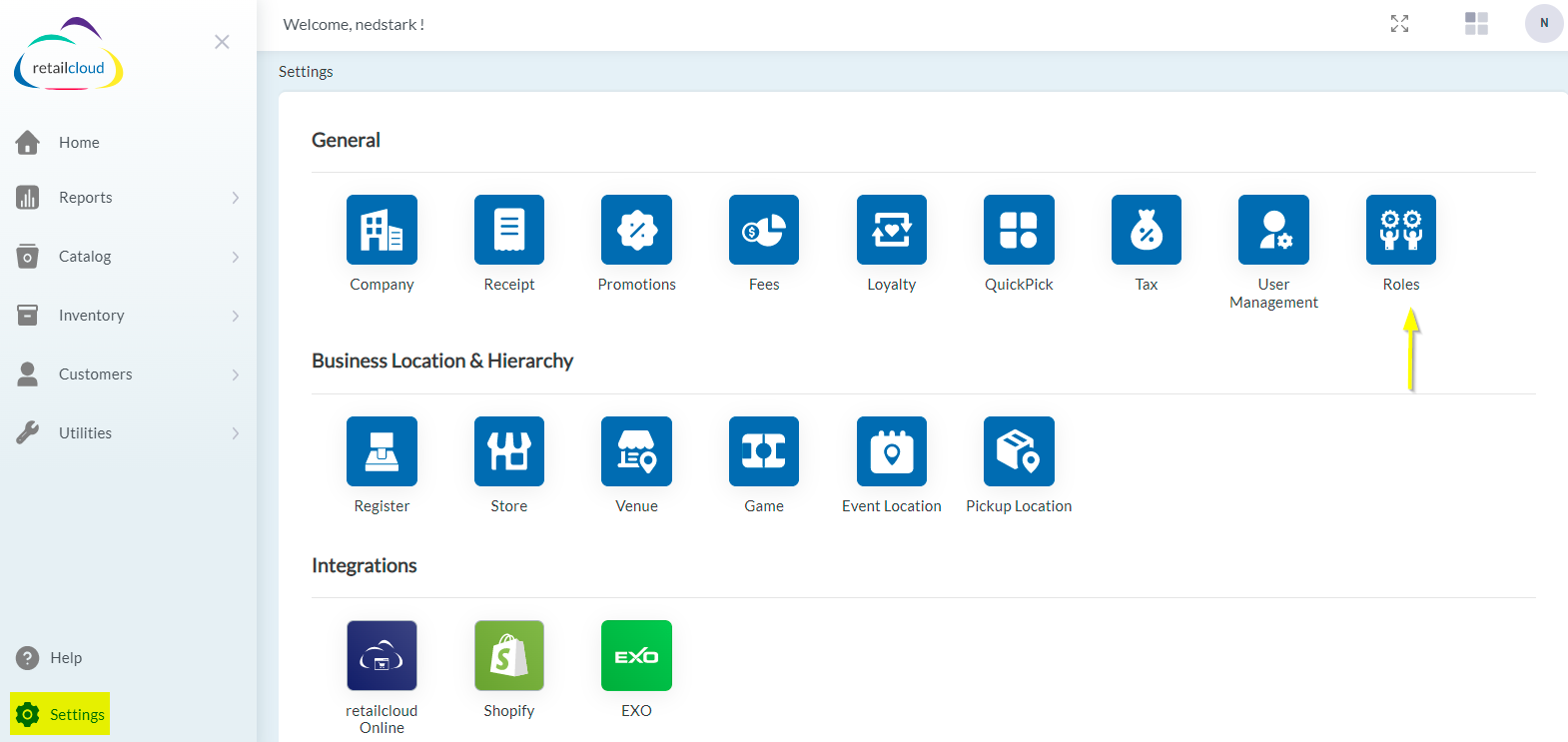
- On the roles page, you will see your user roles listed. Click on one of these role names to view their permissions.
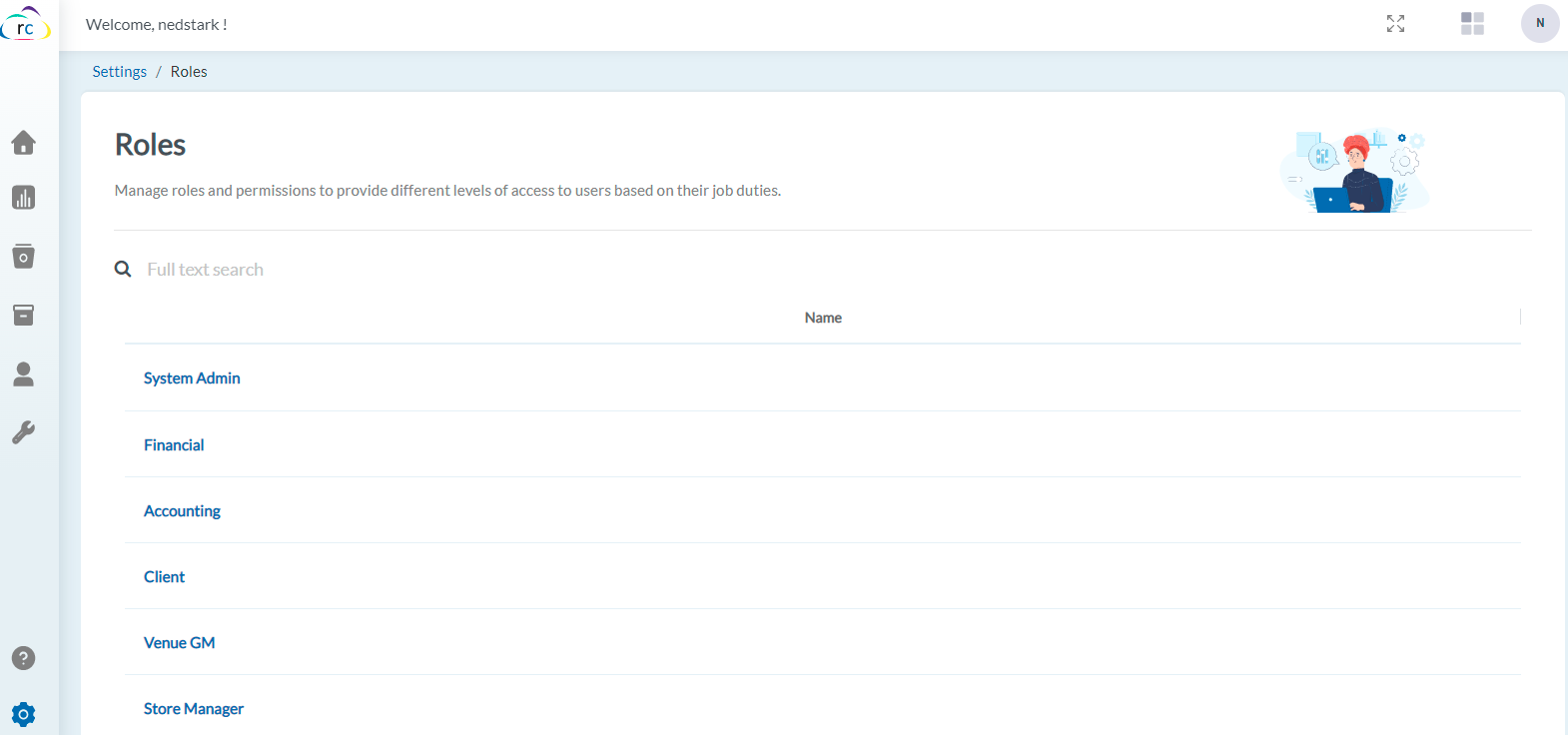
- When you click on a role name you will see a list of permissions for this role. Depending on your pricing plan the role will have editable or pre-set permissions. Permissions are defined with a toggle ON/OFF, a toggle ON giving the role access to action, and a toggle OFF denying them access.
-
To change a user’s permission from the default click one of the toggles. The default setting is indicated with a grey toggle bar. Grey means the permission is disabled, Blue means it’s enabled.
- You can give specific permission to users' roles by clicking on the dropdown near the toggle bar. (READ, WRITE, DELETE)
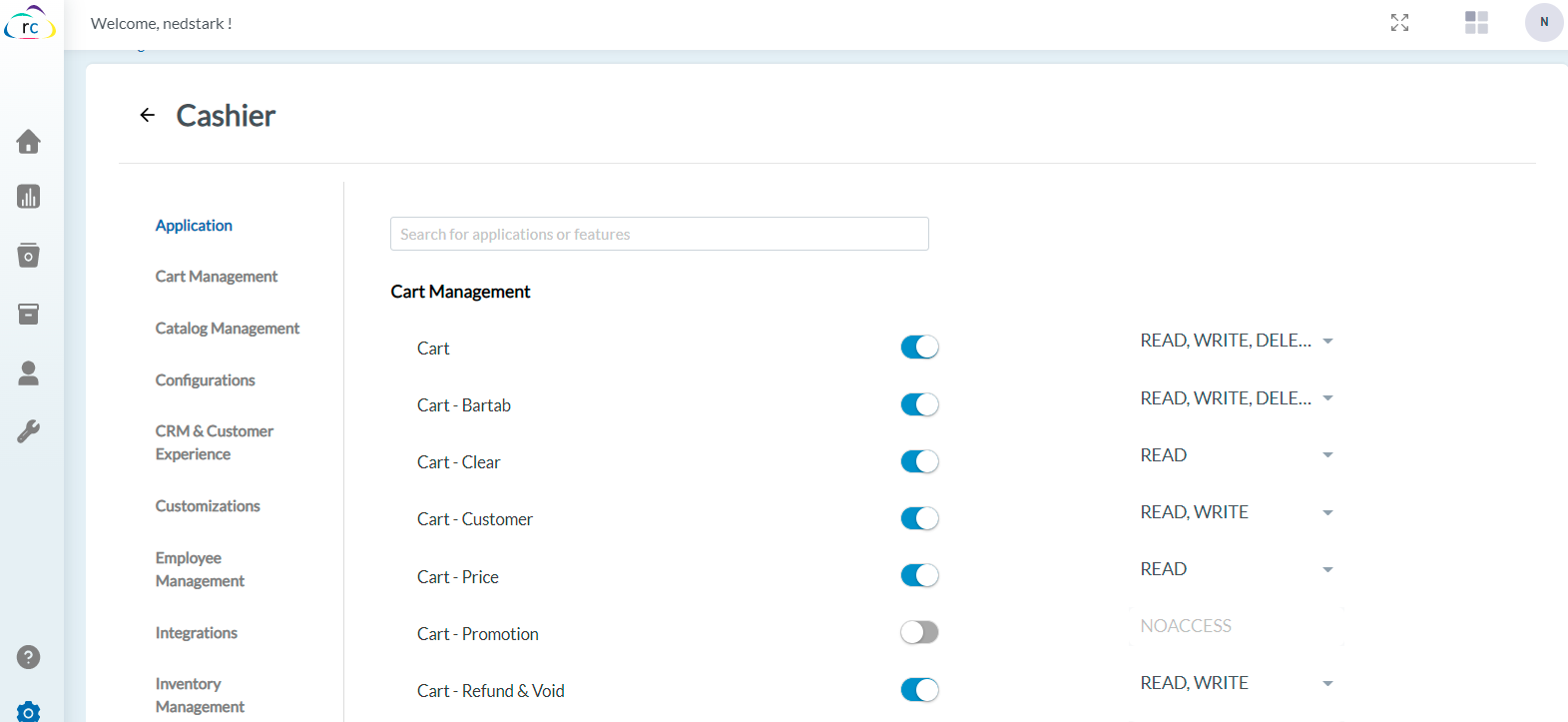
- With Cashiers, we can, for example, allow them to process returns and exchanges on sales but not perform discounts on sales by enabling and disabling the corresponding fields.
Any changes you make on this screen will be saved automatically and come into effect the next time the user signs into the store.
Note
You do not need to set permissions for each new employee that joins your team. When you are setting up a new user, assign them the relevant role, and they will have the same permissions as all staff at their level.
Articles in this section
- Item Import Field Descriptions
- Overview
- Merchant Onboarding
- Navigation Bar
- Reports
- Items
- Settings
- Dashboard Overview
- Company
- Register
Comments
Please sign in to leave a comment.