Gift cards are a valuable way to enhance customer loyalty and simplify payment processing. Our system offers a built-in gift card program with support for multiple processors, giving you the flexibility to manage gift card sales and redemptions across your venues, stores, and registers.
In this section, we’ll cover the areas of Gift Card Management in Console:
-
Gift Card Processor Setup – Adding or editing integrated gift card processors (such as STS, Factor4, Givex, Yinzcam, Clutch, and others).
-
Processor Configuration Details – Required credentials and parameters for each processor.
-
Location Mapping – Assigning gift card settings to specific venues, stores, or registers.
-
Prevent Verification Option – Using gift cards without processor verification for tracking and reporting purposes.
By the end, you’ll know how to set up and manage gift card processors to ensure smooth transactions across your entire retail domain.
Gift Card Processor
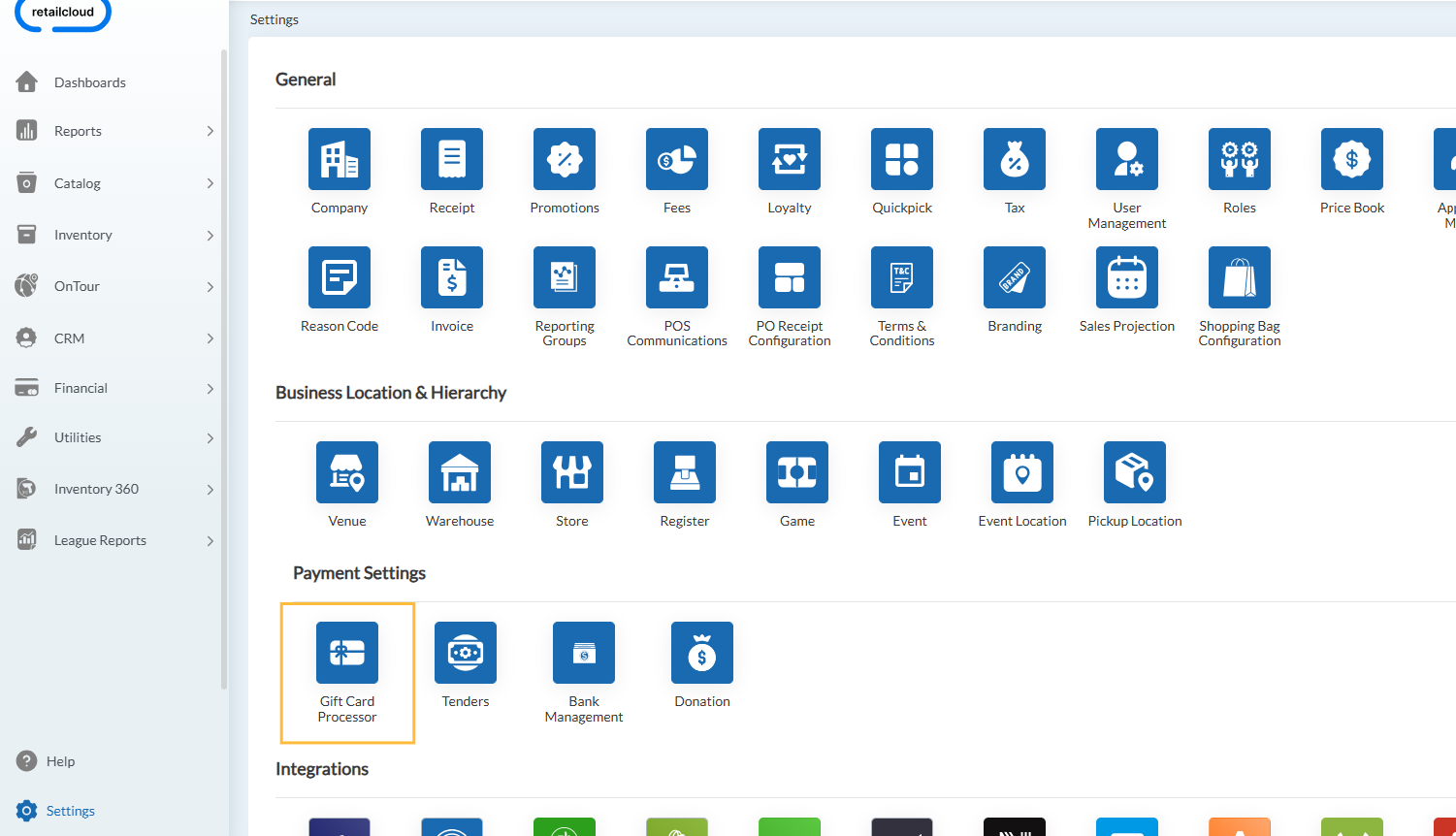
Navigate to Settings → Payment Settings → Gift Card Processor
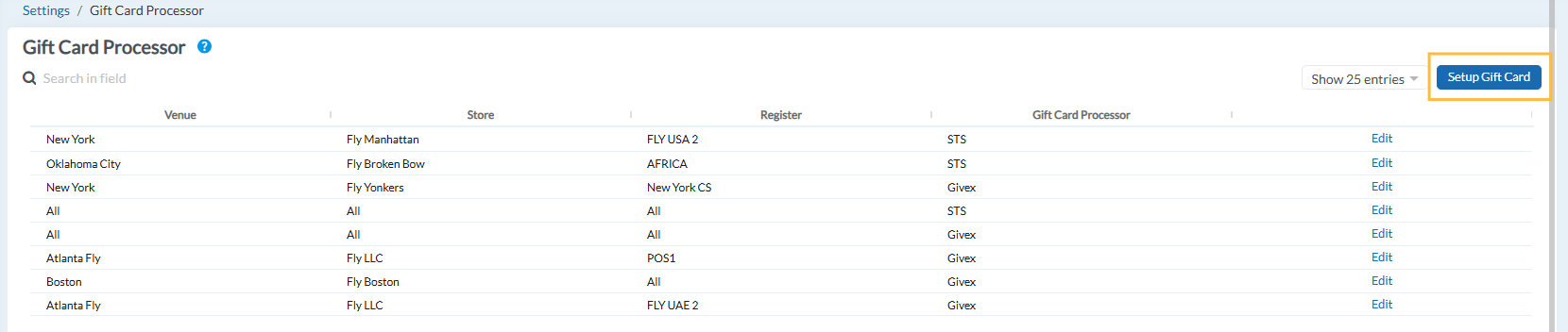
Here you’ll see a list of created processors, including details such as:
-
Venue
-
Store
-
Register
-
Gift Card Processor
-
Options to Edit or Set Up Gift Card
Setting Up a Gift Card Processor
Click the Set Up Gift Card button to begin.
-
Choose Location Scope – Select the Venue, Store, and Register where the processor should apply.
-
Selecting ALL pushes the configuration to all units within your domain.
-
-
Select Gift Card Processor – From the dropdown, choose your desired processor (STS, Factor4, Clutch, Givex, Yinzcam, Cayan) or the Prevent Verification option.
.png)
-
Enter Required Details – Provide the credentials required for the chosen processor (see below).
-
Save Settings – Once saved, the configuration will apply to the selected locations.
.png)
Processor Options & Required Credentials
-
Prevent Verification – No additional details required. Use this to track gift sales when another form of verification is used.
-
STS – Requires Merchant ID and Terminal ID.
-
Factor4 – Requires Client ID, Location ID, Terminal ID, Integration Auth, and Integration Password.
-
Clutch – Requires Brand ID, Location ID, Terminal ID, API Key, and API Secret Key.
-
Givex – Requires Integration Auth and Integration Password.
-
Yinzcam – Save directly after selecting Venue, Store, and Register.
-
Cayan – Save directly after selecting Venue, Store, and Register.
Location Mapping
Gift card settings are flexible and can be applied at different levels:
-
Venue – Select a venue to apply settings across all its stores.
-
Store – Select a specific store under the chosen venue.
-
Register – Select a specific register within the store.
-
ALL – Apply the configuration across your entire domain.
This ensures you can fine-tune your gift card setup depending on operational needs.
Tip
If you want to test gift card sales without live verification, use the Prevent Verification option. Once you’re ready to go live, update the settings with your processor credentials.
Articles in this section
- Item Import Field Descriptions
- Overview
- Merchant Onboarding
- Navigation Bar
- Reports
- Items
- Settings
- Dashboard Overview
- Company
- Register
Comments
Please sign in to leave a comment.