Tikt lets you offer the ultimate in-house dining experience for your customers. Customers just scan a QR code on their table to view the smart menu, place an order, and pay at the Table.
Once the items are added to the cart by the guests, it's time to place the order.
Note:- Only the primary guest can Place the orders.
Click on the 'Review Order' button to View the Orders. All the order items with order details will be listed here.
Click on the 'Send To Kitchen' button and Confirm to place your order by entering your card details.
An order can only be placed if the guest saves a card on file. Guests will get a pop-up message to enter their card details, in order to place the order.
Your Order will be sent to the POS and a success message will be displayed once the order is placed.

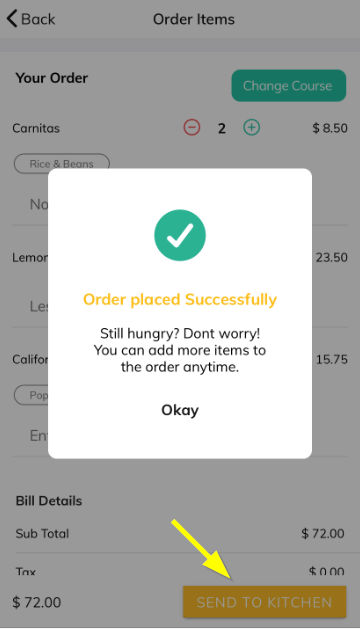
If you have your printer settings configured to accept orders directly from Tikt, the orders will be sent to the kitchen/bar, else the orders are sent to the POS. Servers will get instant notifications on the inServ App when every order is placed.
Reordering Items
If you wish to reorder an item or items on the same ticket, click the ORDER IN PROGRESS cart button at the bottom --> Select the Order again tab from the Order Items page which will list the recent order.
You can see the orders you already placed in batches. Click on the Reorder button and you can reorder the same items or you can simply click on the Add button to add it to the cart again.

Articles in this section
- Overview
- Tikt Merchant Portal
- Tikt Configurations
- Open Auths
- How to Add Transaction Fee?
- Pick-Up Orders
- Menu Creation & Setup
- How Tikt Works?
- Scan the QR Code on the Table
- Guest Count & Contact Tracing
Comments
Please sign in to leave a comment.