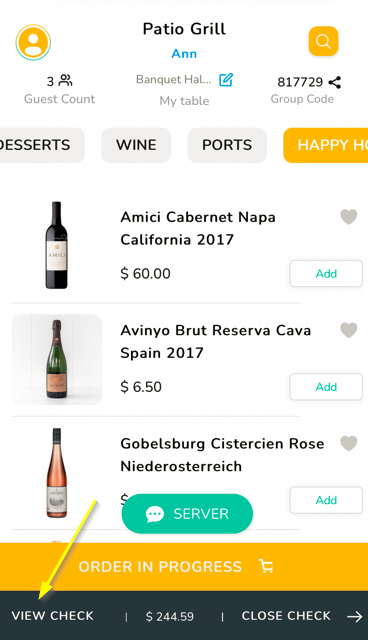
Guests can view their check by simply clicking on View Check from the bottom of the screen from Tikt once the orders are placed.
Navigate to the bottom of the page and click on the VIEW CHECK button. This will display your order details as well as bill details.
Guests can view the following details:
- Ordered menu items with modifiers
- Item Quantity
- Item Price
- Item level comments
- Total Amount
- Discounts
- Tax & Fees etc

Fees
If your business wants to charge customers a convenience fee, Tikt can now configure and apply the fee to a sales transaction.
You can set up fees in the back office (Restaurant Console) and maximize flexibility by customizing them to suit your needs. Click on the info button near the Fees to know more details about the fees which got applied.

Click here to know how to setup Fees
Articles in this section
- Overview
- Tikt Merchant Portal
- Tikt Configurations
- Open Auths
- How to Add Transaction Fee?
- Pick-Up Orders
- Menu Creation & Setup
- How Tikt Works?
- Scan the QR Code on the Table
- Guest Count & Contact Tracing
Comments
Please sign in to leave a comment.