Full Refunds / Voids
The Servio has the option of requiring the cashier to have a valid sales receipt # in order to get a refund. Click on the clipboard image with an arrow pointing down, along the top bar. Please note that the Refund Icon will be RED when it is in refund mode and all items added to the cart when the refund icon is red will be treated as returns. Press the icon to go back to sales mode and add items to sell to the transaction if needed.

Refunds can be done in one of three ways: Complete, Partial, Unverified. For exchanges switch back to sale mode to sell items within the same transaction.
Complete: This will be if all items in the original sale are being returned
Partial: When only some of the items sold are being returned
Unverified: Returns which do not reference a prior sale (If customer does not have receipt this will allow you to return an item)
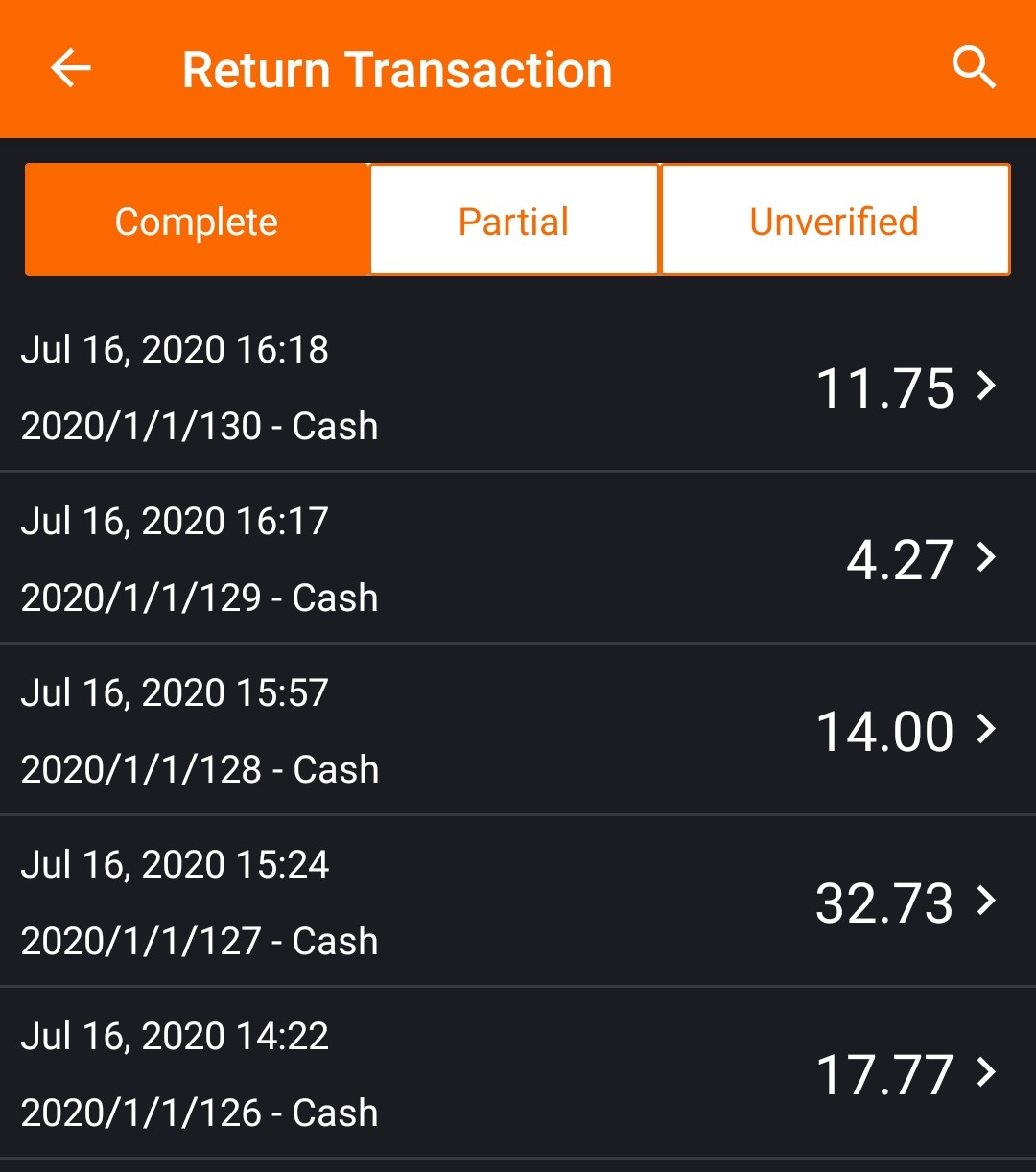
Verified Refund allows you to verify the return against a transaction. You will need a transaction number to process the refund. To do a Full Refund, select the 'Complete' tab and choose the transaction receipt. User has the option to verify the refund, to bring up the receipt in which the refunded items had been purchased in. This allows the user to ensure the refunded items had been purchased at the store.
Once the transaction receipt is selected, all the items from the receipt are placed in the cart to return.
Select the tender type and complete the return.
To void a transaction, click on the 'Clear Cart' button from the cart details screen. This will prompt for void confirmation.
Partial Refunds
If you wish to return only some of the items sold, you can select the 'Partial' tab and Select the transaction from the transaction list → Select the items to be returned from the list of items → Click ‘Proceed’. Select tender type as usual and complete the return.
Unverified Refunds
If you wish to process a refund without requiring the transaction #, the steps are similar to those above.
- Select the Return button at the top of the screen. It will return red, and you are now in the return mode.
- You will now add the items to the cart, which you wish to return. There will be no step requiring you to enter a transaction number.
- The items will enter the transaction at a negative total.
Select tender type as usual and complete the return. If refunding to credit card, it will process credit on original credit card used.
Articles in this section
- Servio Self Checkout KIOSK
- Overview
- Getting Started
- Servio Certified Hardware
- Registration & Setup
- Setup Products and Modifiers
- Quick Pick / Menu Assignment
- App Modes
- Placing Orders & Managing Checks
- Placing Online Orders
Comments
Please sign in to leave a comment.