retailcloud’s Kitchen Display System (KDS) is a POS integrated application that works remotely and displays orders to be prepared which increases restaurant efficiency. This reduces both staff effort and the chances of manual error by automating the entire process.
Configure KDS
To enable KDS on Servio, from the home screen, scroll from the left side in or press on the RC Settings in the upper left → Click on Configuration → Receipt → Enable Kitchen Display.
Click on the search icon for Auto Recovering the KDS device or manually enter the IP address in the provided fields. (You can find the IP address from the KDS Settings page)
Order Processing
Once an order is placed through POS and Send to Kitchen, KDS automatically rings up. Since the food order is placed at the point of sale, it has to be able to talk to the kitchen display system for food to route and show up in the back of the house.
If the order is placed, the kitchen staff can CLOSE the order from the KDS.

Bumping an Order
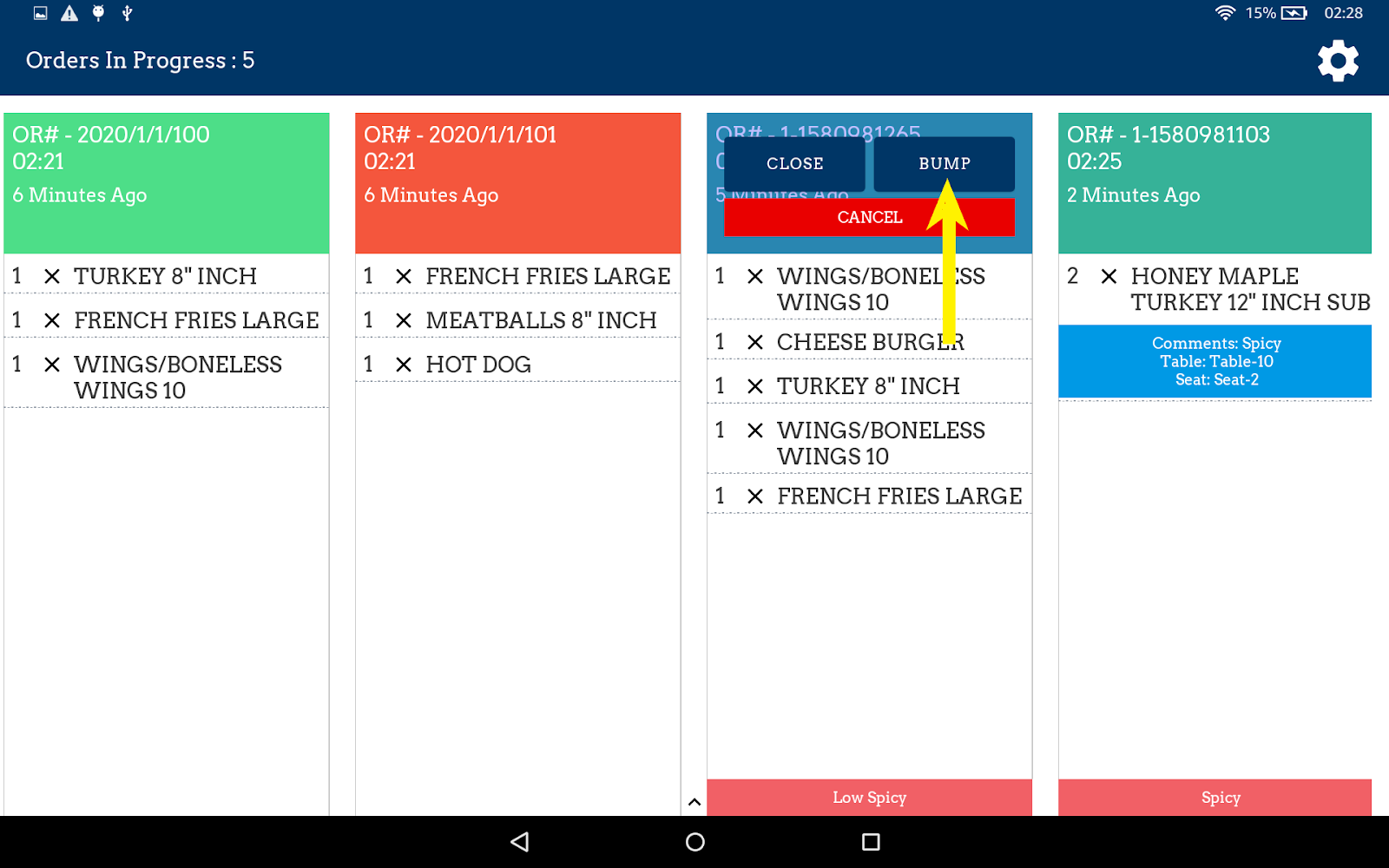
The bump Order feature is very useful when you want to give special priority to any orders or change the order positions.
To easily bump an order, from the KDS home screen, click on the particular order to be bumped.
Click on “BUMP”. The order will automatically get displaced to the left position.
Cancel an Order
To cancel an order, from the KDS home screen, click on the particular order to be canceled.
Click on “CANCEL”. The order will automatically get canceled.
View Order Status
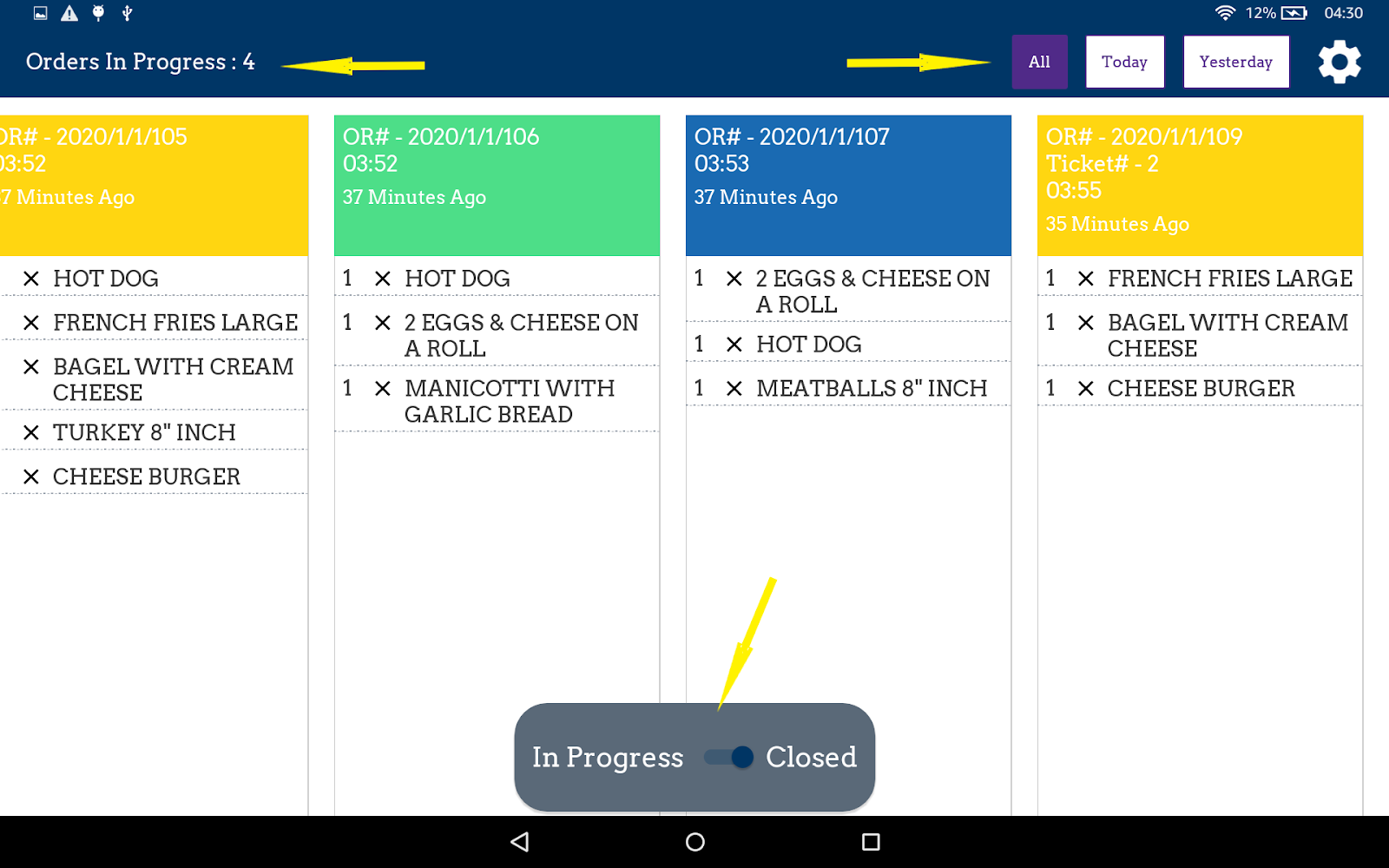
View all the In-Progress and Closed Orders from the KDS screen.
From the KDS home screen, Swipe up the ^ sign (arrow) at the bottom of the screen. Select from In-Progress or Closed orders to view. Closed Orders can be filtered by All, Today & Yesterday. The count of all orders in progress will be displayed at the top of the screen.
Printer on KDS
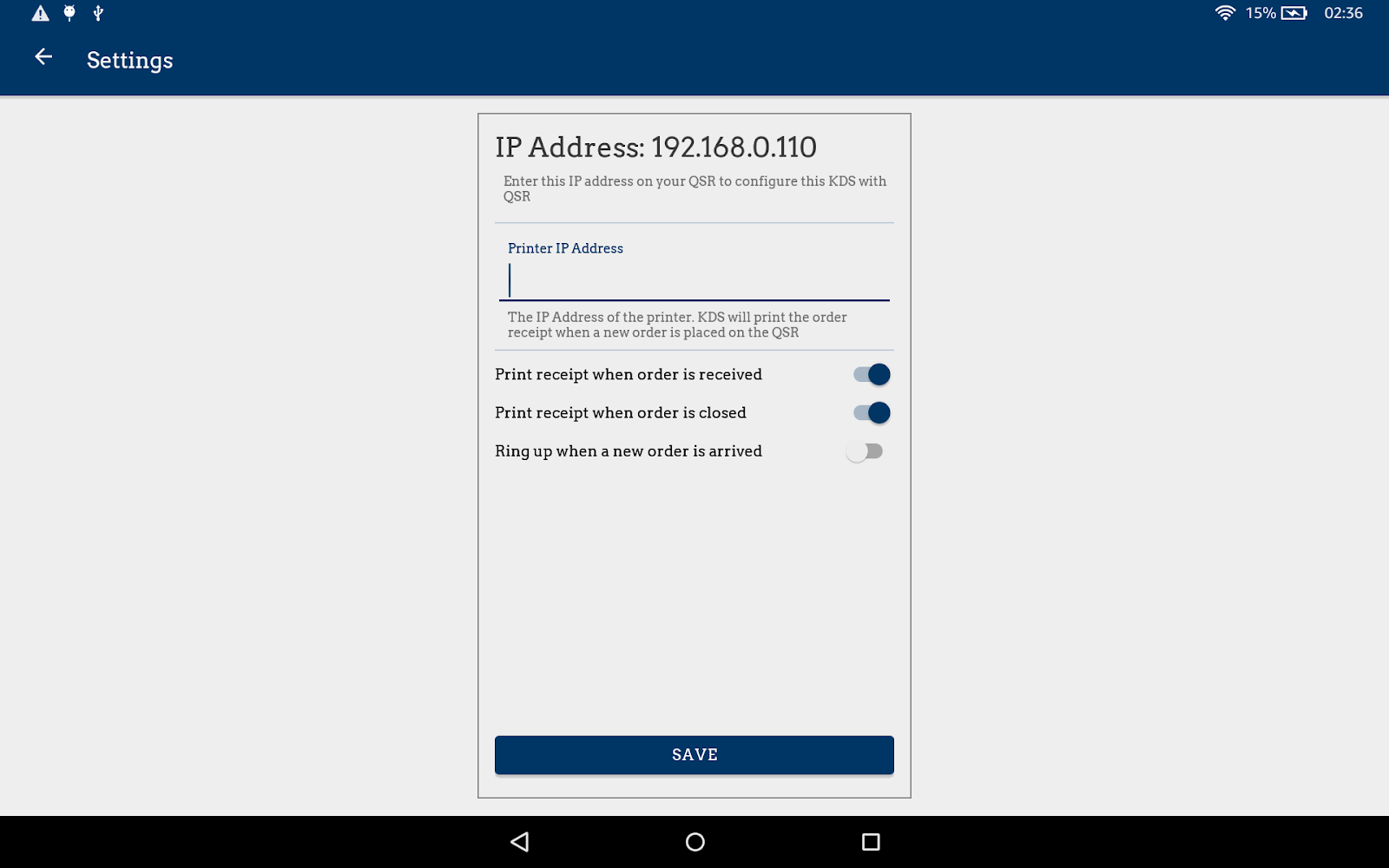
To configure the Printer, go to Settings (right top corner) from the KDS screen.
Printer IP Address: Enter the IP address of the printer. KDS will print the order receipt when a new order is placed on the POS. The 2 printing options are :
Print receipt when order is received: Print receipts when an order is received. Default is Enable
Print receipt when order is closed: Print receipts when an order is closed. Default is Enable
Ring up when a new order arrives: KDS rings up when an order arrives. The default is Disable.
KDS Settings
To configure KDS Settings, go to Settings (right top corner) from the KDS screen.
IP Address: Enter this IP Address on your POS to configure the KDS with POS.
Printer IP Address: Enter the IP address of the printer. KDS will print the order receipt when a new order is placed on the QSR.
Supported Hardware
Certified KDS
- Elo iSeries 2.0 , 3.0 ( 10" and above )
https://retailcloud.com/shop#!/Elo-i-Series-10-Tablet-on-Stand/p/95435394
https://retailcloud.com/shop#!/Elo-i-Series-15-Tablet-on-Stand/p/82142981
Articles in this section
- Servio Self Checkout KIOSK
- Overview
- Getting Started
- Servio Certified Hardware
- Registration & Setup
- Setup Products and Modifiers
- Quick Pick / Menu Assignment
- App Modes
- Placing Orders & Managing Checks
- Placing Online Orders
Comments
Please sign in to leave a comment.