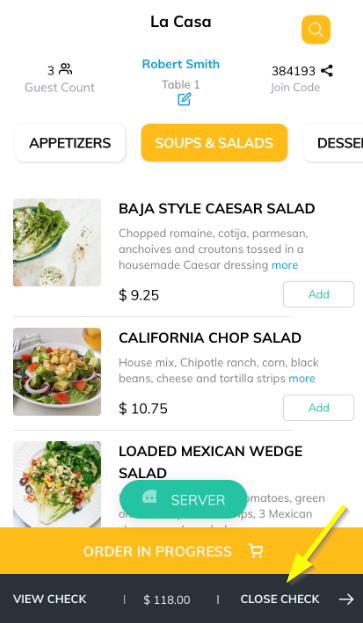
When the guest is ready to checkout, click on the CLOSE CHECK.
Adding Tip
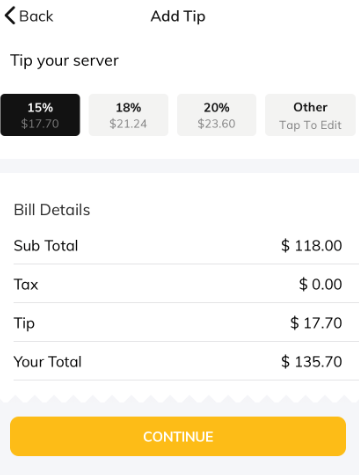
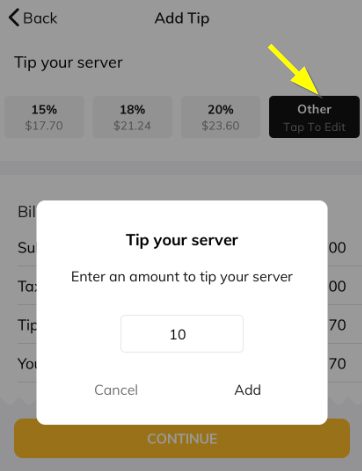
CLOSE CHECK button will take you to an Add Tip page where you can tip your server, you can select from the predefined tip amount/percentage or can enter the desired amount by selecting the 'Other' option.
Click here to know how to set up tip
Click Continue
The pre-authorized card will be charged and you will get a payment successfully message once done.
Feedback
After a successful transaction, guests can provide feedback using smiley faces and identifying if they are happy or not, enabling you to fix a bad customer experience as quickly as possible.

Digital Receipts
Guests can also send the digital receipt to their mail by providing their email id. Or there is an option to resend the receipt to another phone number.
Click on Resend Receipt to another number, enter the phone number and click on the Send SMS button.

Articles in this section
- Overview
- Tikt Merchant Portal
- Tikt Configurations
- Open Auths
- How to Add Transaction Fee?
- Pick-Up Orders
- Menu Creation & Setup
- How Tikt Works?
- Scan the QR Code on the Table
- Guest Count & Contact Tracing
Comments
Please sign in to leave a comment.