Connect to your clover account and automatically sync your merchant details. Pairing your clover account lets you sync with your restaurant details from clover.
Login to Restaurant Console
Navigate to Settings --> Integration
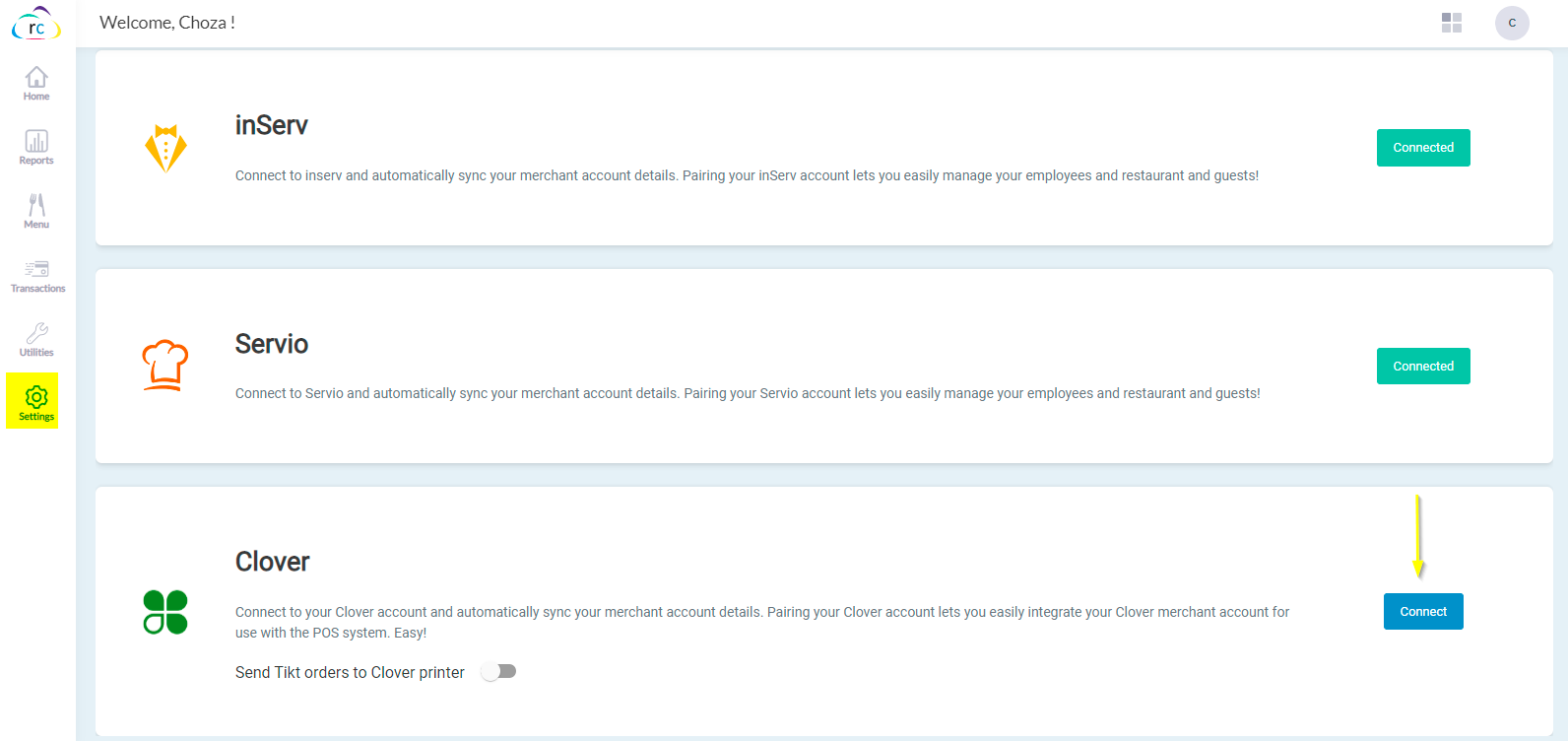
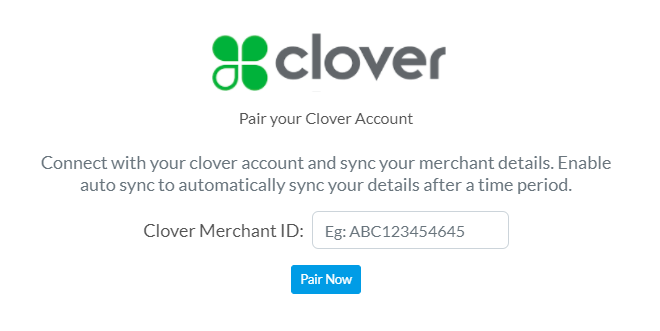
If you have an existing clover account, click on the 'Connect' button and enter your Clover Merchant ID, and hit the 'Pair Now' button to pair. This will automatically sync your details after a time period.
Once paired, Tikt orders will be synced directly to clover POS. Sync can also be initiated manually from the Restaurant Console portal. Clover merchants will be able to view/modify/close their Tilt orders from their POS/backend portal.
The integration will sync the below data to the retailcloud account
-
Items
-
Modifiers
-
Tax
-
Discounts
All the orders from Tikt will be synced back to clover
-
Orders
-
Order Items
-
Order Modifiers

Things to Note:
Currently, we do not support the below functionalities:
- Support for multiple taxes for items
- Support for deletion of taxes
- Support for multiple locations
- Syncing tables and menus from clover - clover merchants have to create tables or menus from the restaurant console.
Articles in this section
- SuiteSpot Retail Merchandise Changes in Restaurant Portal
- Setup Gift Card Processor from Settings
- Discounts in Restaurant Portal
- Warehouse in Restaurant Portal
- Register in Restaurant Portal
- Venue in Restaurant Portal
- Venue Wizard in SuiteSpot
- Order Report and Kitchen Prep. Report Export
- CRM in Restaurant Portal
- Auths in SuiteSpot
Comments
Please sign in to leave a comment.