This report provides you with a record of the number of hours employees were clocked in, it can provide details for a date range or by on a daily basis.
Run this report periodically with the "Only Forced entry" flag to see if you have any potential issues of employees not using the clock in/out feature or any potential abuses of supervisors modifying time stamps.
Navigate to Reports --> Employee Reports --> Time & Attendance
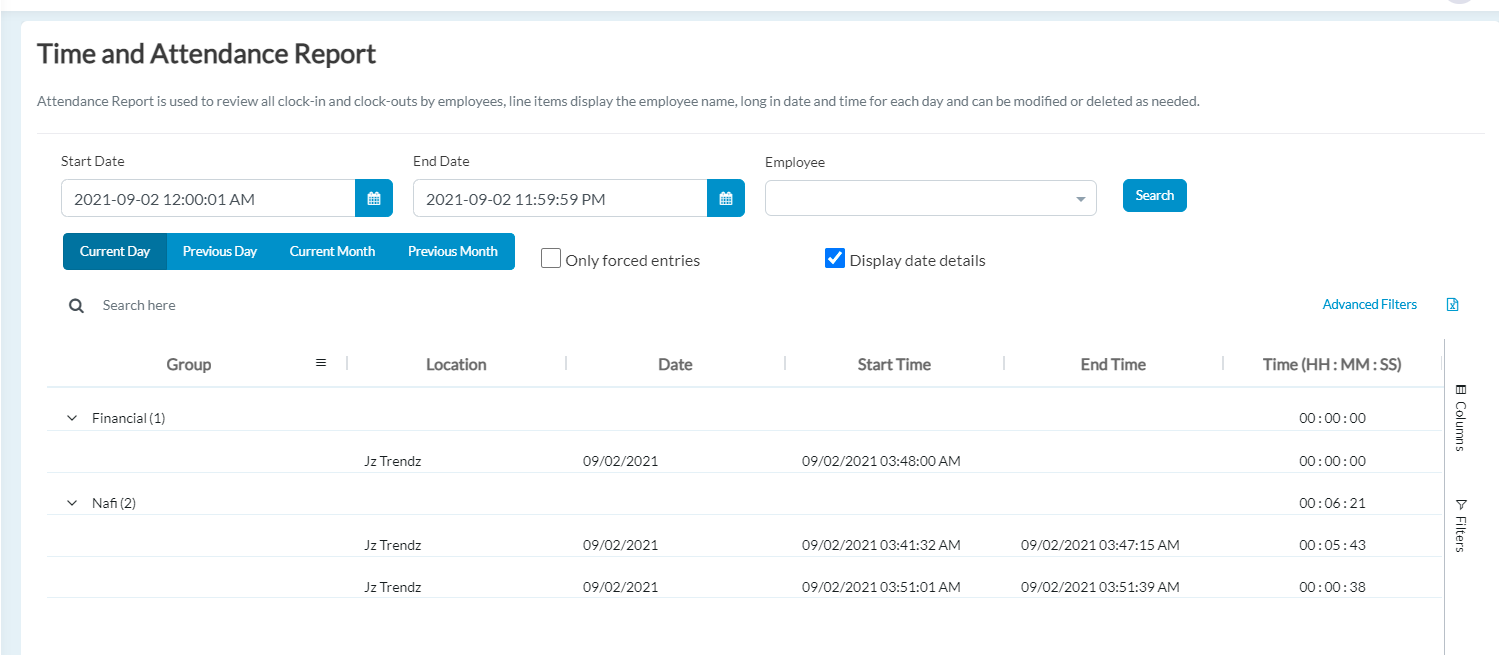
The Employee Name Filter allows the user to search individual employees assigned to be tracked.
Employee: Select the Name of the Employee from the dropdown.
User enters the date range using the popup calendar for the From date and To date.
From Date: Status of the date selected from the drop-down
To Date: Status of the date selected from the drop-down
By selecting Only Forced Entries the report will show all time that has been edited from the original clock in or out.
To filter the report by date for the associated date range check the Display Date detail box.
Advanced filters let users filter the report by Venue, Store, Register, or Group by selecting the appropriate drop-down.
Any combination of filters can be used to return desired results. The user then clicks the Search button and is given a report.
User is also given the option to download as an excel file. When a report is generated, the user can see the Venue, Store, Employee name, Date, Start Time, and End Time in the hours: minutes format of when the employee clocked in and out.
Articles in this section
- SuiteSpot Retail Merchandise Changes in Restaurant Portal
- Setup Gift Card Processor from Settings
- Discounts in Restaurant Portal
- Warehouse in Restaurant Portal
- Register in Restaurant Portal
- Venue in Restaurant Portal
- Venue Wizard in SuiteSpot
- Order Report and Kitchen Prep. Report Export
- CRM in Restaurant Portal
- Auths in SuiteSpot
Comments
Please sign in to leave a comment.